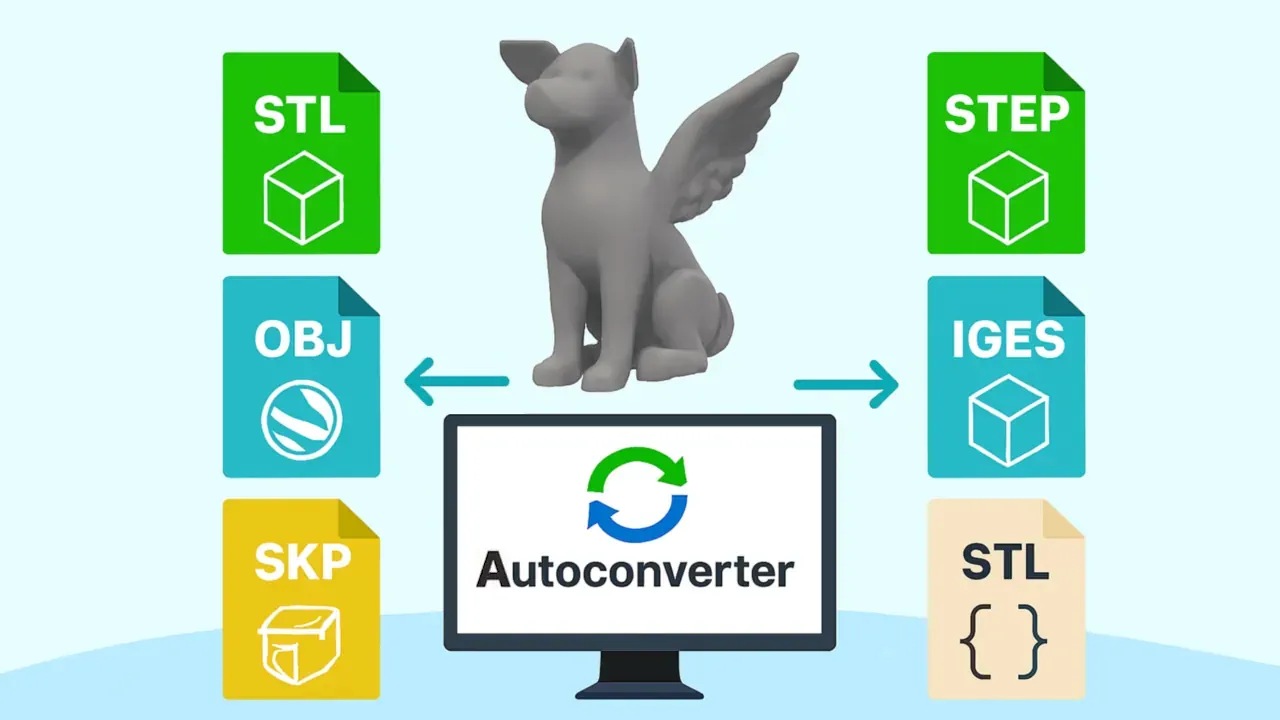
Autoconverter is a standalone Windows application for converting 3D mesh files between formats - STL, OBJ, STEP, SKP, FBX, GLTF, IGES, 3DM, USD, and over 30 others - without requiring any CAD software, SketchUp, or other source application to be installed. It combines format conversion with built-in mesh editing and OpenGL-based 3D visualization in a single tool.
Supported Import and Export Formats
Autoconverter reads and writes the following 3D file formats:
- Engineering CAD: STEP (.stp, .step), IGES (.igs, .iges), BREP, SAT (ACIS)
- 3D printing: STL, 3MF, AMF, OFF
- Mesh and DCC: OBJ, FBX, DAE, 3DS, PLY, BLEND, LWO, COB, ASE
- Design and visualization: SKP, 3DM, GLTF / GLB, USD / USDA / USDC / USDZ, VRML / WRL, X3D, IV
- BIM and point clouds: IFC, XYZ / ASC
- Other: U3D, OGEX, CSM, RAW, JSON, X, TER, and more
Conversion is a three-step process for any format pair: open the source file, then save as the target format. Multiple output formats can be generated from the same loaded file without reopening.
Key Features
3D Mesh Visualization
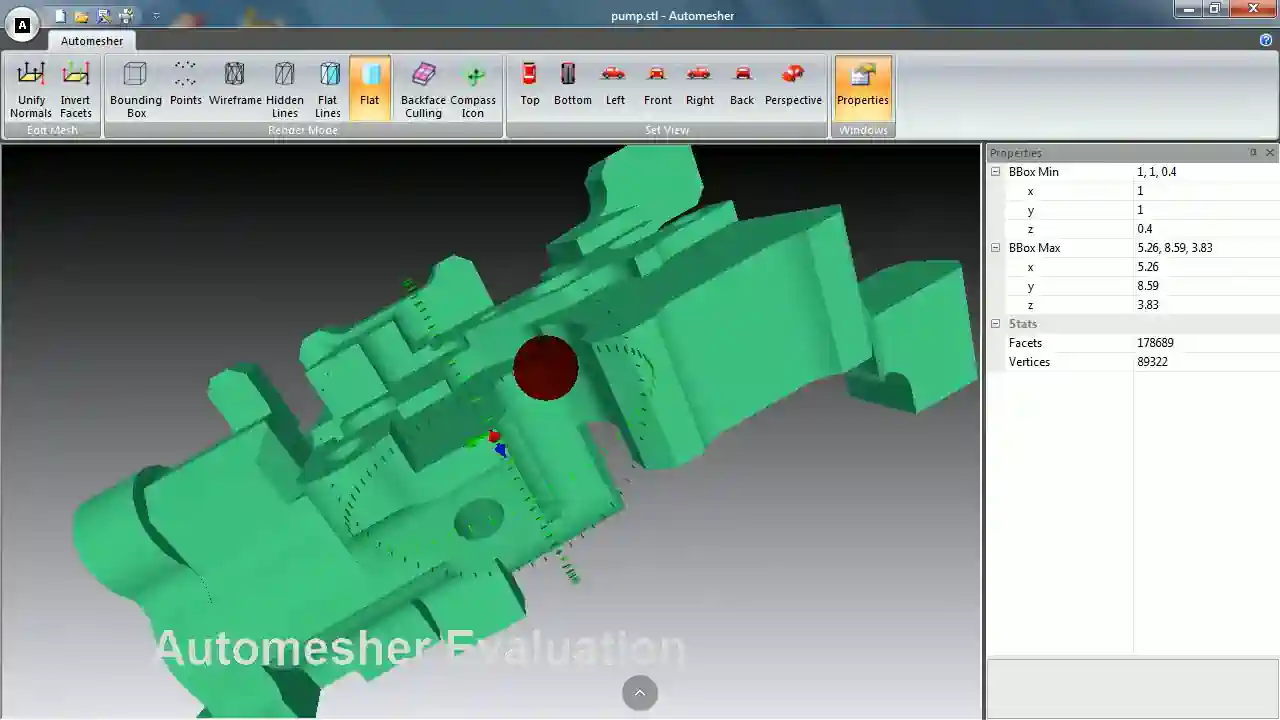
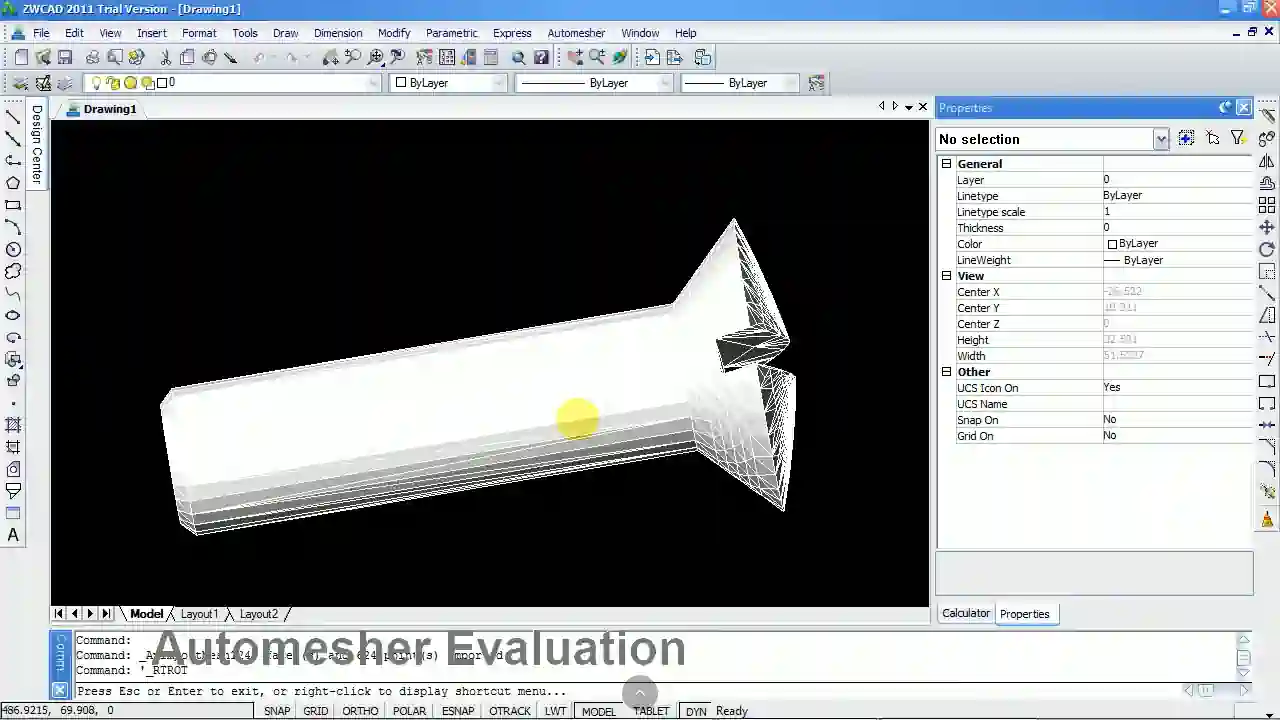
Autoconverter includes an OpenGL-powered 3D viewport that loads models on open and updates in real time as you edit. Rendering modes include solid shading, flat shading, wireframe, hidden line, and point cloud - each useful for different inspection tasks. Solid shading with per-vertex normals reveals surface smoothness and shading artifacts; wireframe shows polygon density and edge topology; point cloud mode reveals scan data distribution.
Mesh Editing and Repair
Before exporting, Autoconverter's mesh editing tools allow basic cleanup and repair directly in the application:
- Fix Geometry - repairs non-manifold edges, degenerate faces, and incorrect face winding
- Fill Holes - closes open boundary loops to produce watertight meshes required for STEP/SAT solid export and 3D printing
These tools are particularly useful when converting between mesh formats and engineering solid formats (STEP, IGES, SAT), which require watertight geometry.
Batch Conversion
The Batch Convert function processes entire folders of 3D files to a target format in a single unattended run. Add folders, enable recursive subfolder scanning, select the output format, and click Start. All supported input formats can be mixed in the same batch queue. See the batch conversion guide for the full workflow.
Format Version Conversion
For formats with multiple versions - FBX (2011–2020), STEP (AP203/AP214/AP242), SKP (SketchUp 3–current), IFC (IFC2x3/IFC4) - Autoconverter's File > Convert File Version function changes the version metadata without re-processing geometry, preserving all scene data including animation, materials, and assembly structure.
Common Autoconverter Use Cases
- STEP to STL for 3D printing - convert engineering CAD geometry to STL for slicers and additive manufacturing services
- SKP to OBJ for Blender/Maya - bring SketchUp architectural models into DCC tools for rendering and visualization
- OBJ/FBX to GLTF for web 3D - convert product or design models to GLTF/GLB for web viewers, AR, and e-commerce
- STL/OBJ to STEP - convert mesh geometry to faceted BREP solid for import into SolidWorks, AutoCAD, or BricsCAD
- IFC to SKP/OBJ - convert BIM models from Revit or ArchiCAD to SketchUp or OBJ for visualization and coordination
- XYZ point cloud to STL/OBJ - reconstruct mesh from scan data for 3D printing or CAD reference
- FBX version downgrade - convert FBX 2020 to FBX 2014 for compatibility with older game engine versions or DCC tools
Frequently Asked Questions
Does Autoconverter require any other software to be installed?
No. Autoconverter reads all supported formats natively - SketchUp, SolidWorks, Maya, and other source applications do not need to be installed. It runs as a standalone Windows desktop application.
Is there a difference between Autoconverter and Automesher Application?
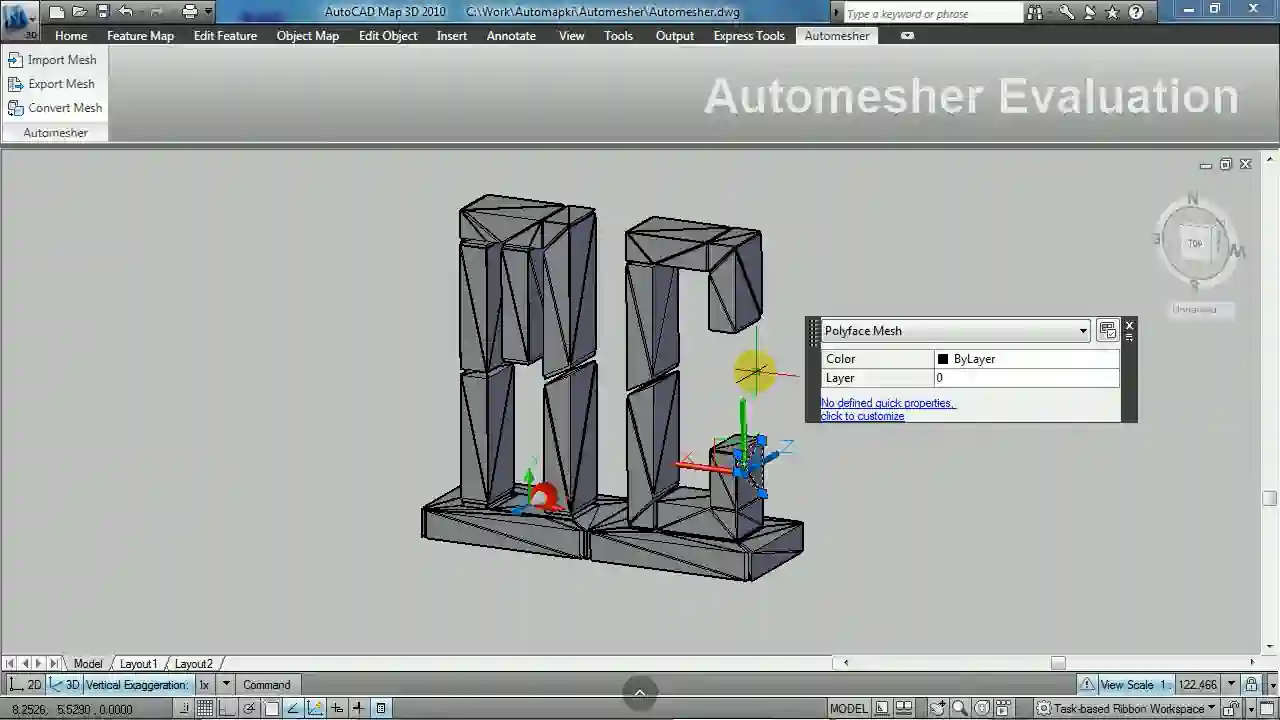
Yes. Autoconverter is a standalone Windows desktop application for converting 3D files without CAD software. Automesher Application is a CAD plugin that adds mesh import and export to AutoCAD, BricsCAD, ZWCAD, and GstarCAD from within the DWG environment. Both support similar format ranges, but the use case is different: Autoconverter for standalone conversion, Automesher for converting directly inside a CAD drawing.
What is the maximum file size Autoconverter can handle?
There is no built-in file size limit. The practical limit is available system memory (RAM). For very large meshes (hundreds of millions of faces), ensure sufficient RAM is available; Autoconverter processes files in memory during conversion.
Is there a free trial?
Yes. The free evaluation version of Autoconverter supports up to 10 file conversions. The full licensed version provides unlimited conversions, batch processing, and all format version conversion features.
Summary
Autoconverter converts 3D mesh files between 30+ formats on Windows - STL, OBJ, STEP, SKP, FBX, GLTF, IGES, 3DM, USD, IFC, and more - with built-in mesh repair, OpenGL visualization, batch processing, and format version conversion. No source CAD application required. For conversions inside AutoCAD, BricsCAD, ZWCAD, or GstarCAD, see Automesher Application.
👉 Ready to convert? Download Autoconverter and try it free for up to 10 conversions.