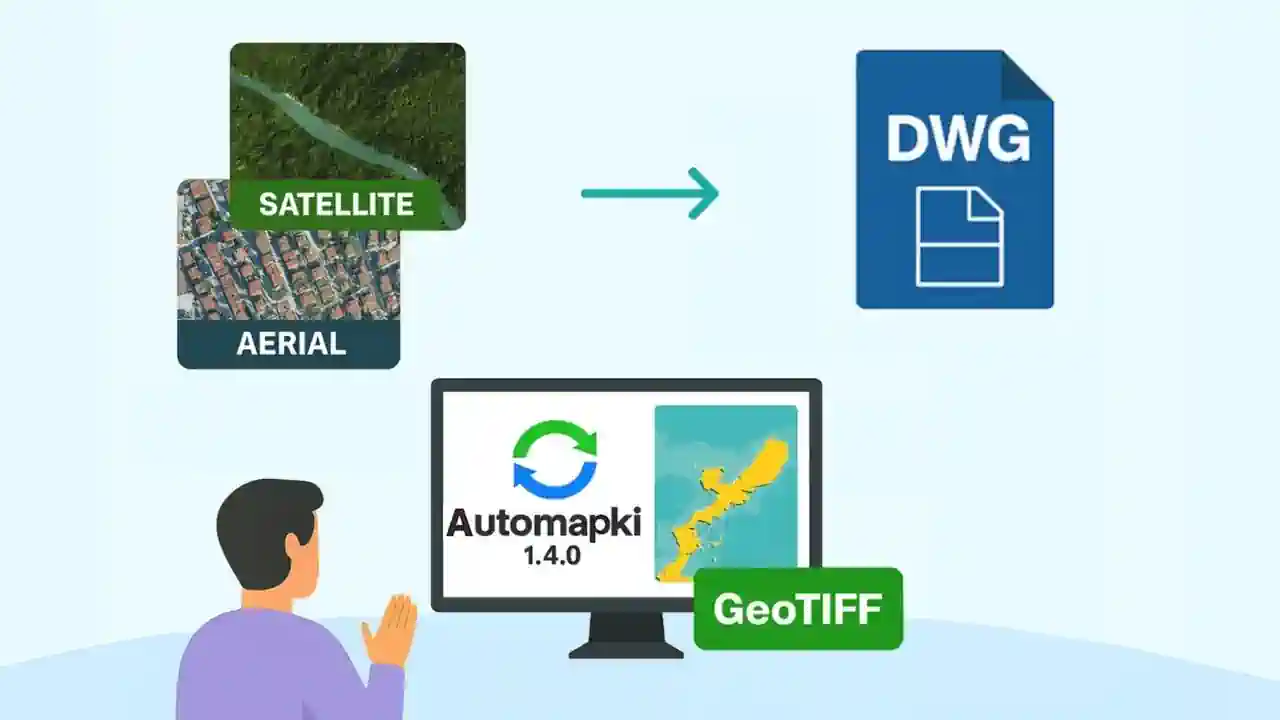
Working with real-world site context in AutoCAD typically means manually attaching a georeferenced image file, if you can obtain one at all. Automapki Application adds the AmInsertTileImages command to AutoCAD, BricsCAD, ZWCAD, and GstarCAD - it downloads satellite or aerial map tiles from web map sources, merges them into a GeoTIFF, and inserts the result as a georeferenced background image directly in DWG model space.
The result is a CAD drawing with an accurate, coordinate-aligned satellite or aerial background that you can draw on top of - no manual image cropping, no external GIS software required.
What the Tile Image Workflow Does
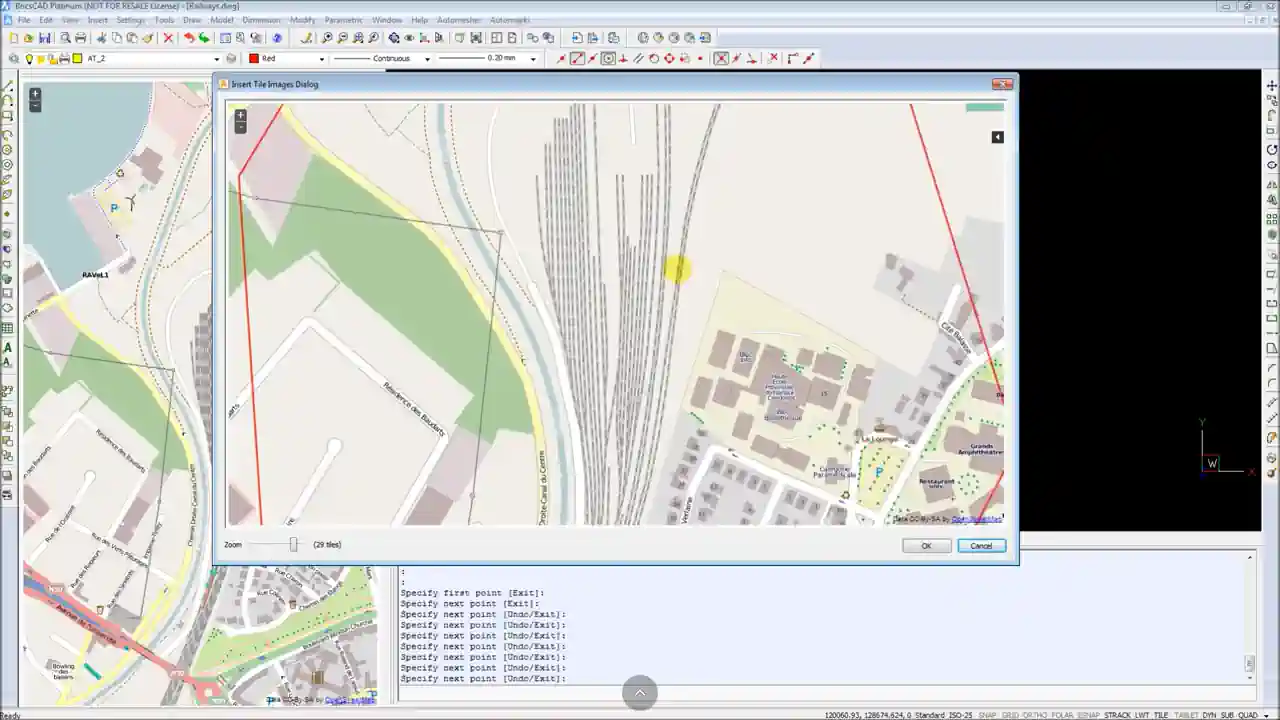
The AmInsertTileImages command automates a three-step process that would otherwise require GIS software:
- Downloads overlapping web map tiles from the selected map source for the coverage area you define in the drawing
- Merges and georeferences the tiles into a single aligned raster image using your drawing's active coordinate reference system
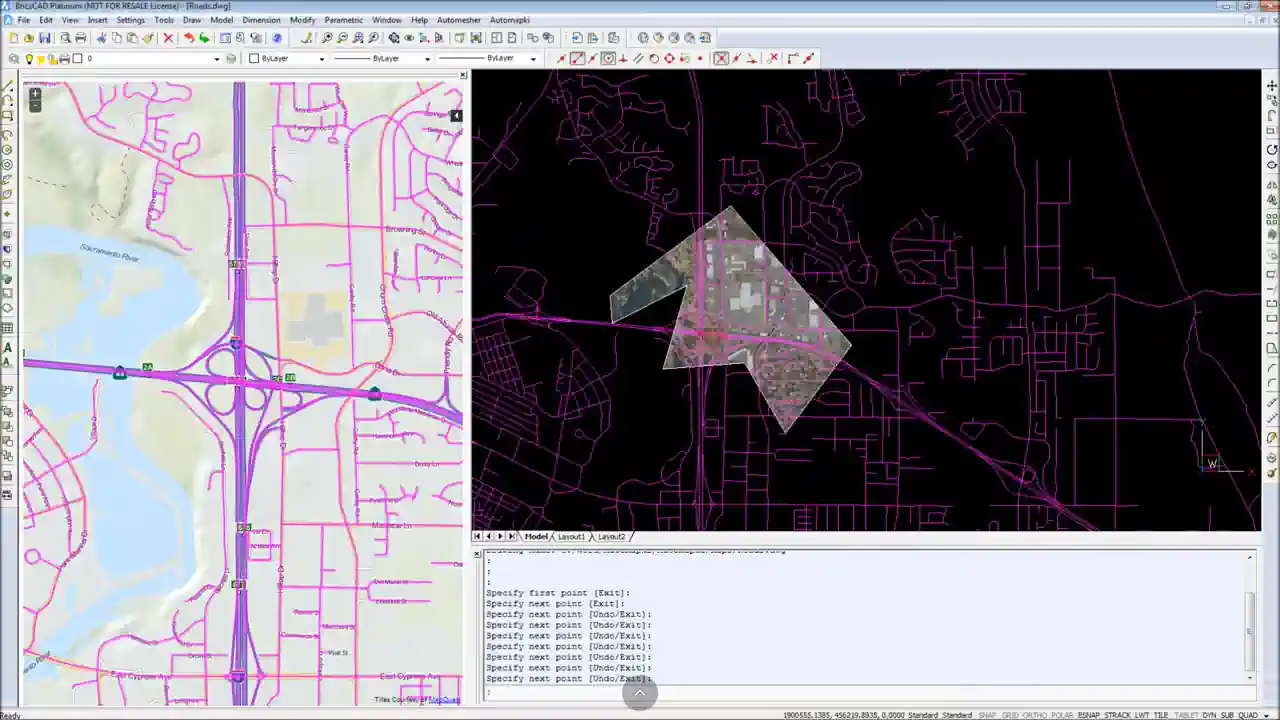
- Inserts the GeoTIFF into the DWG model space at the correct position, scale, and orientation - aligned to your existing drawing geometry
The generated GeoTIFF file is saved locally for reuse across multiple CAD projects. You can attach the same image to any DWG without re-downloading tiles. See the satellite imagery guide for more details.
Supported Map Tile Sources
Automapki downloads tiles from standard web map services and TMS (Tile Map Service) providers:
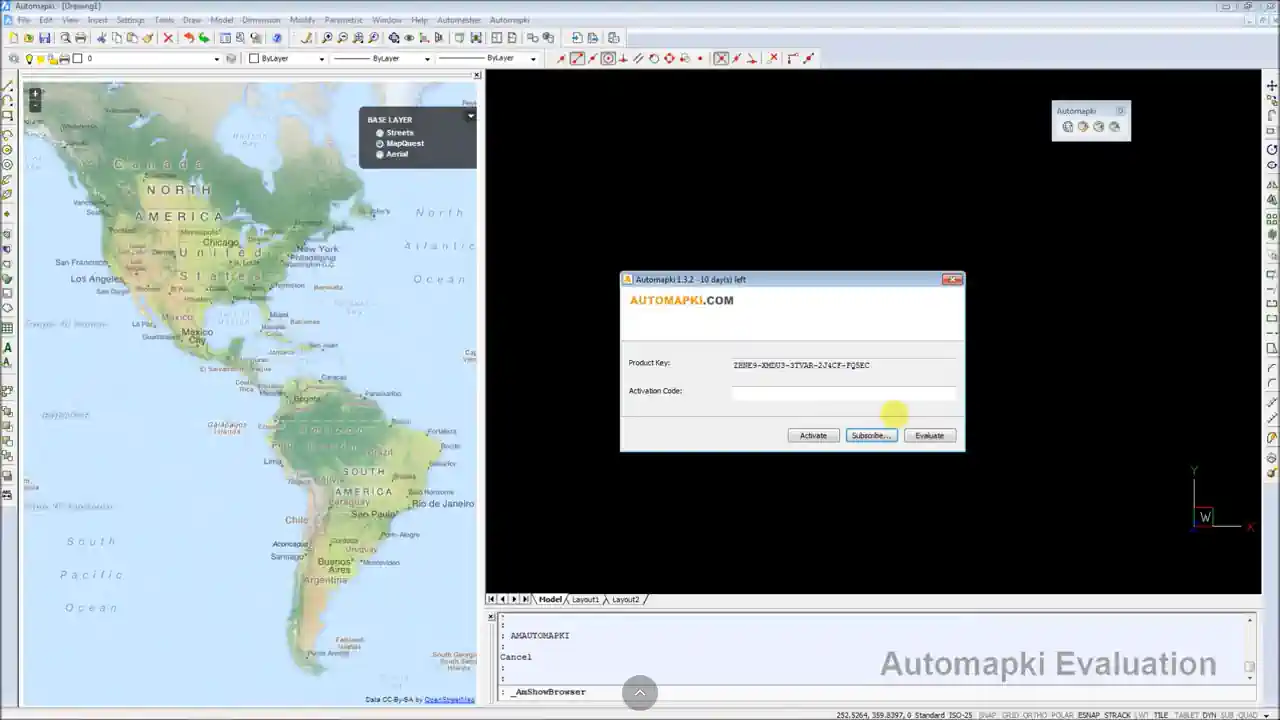
- OpenStreetMap - standard cartographic tiles for context and orientation
- Open Aerial - high-resolution aerial photography
- MapQuest - satellite and street map tiles
- WMS (Web Map Service) - connect to any standard WMS server for custom aerial, topographic, or thematic map layers (municipal GIS portals, national mapping agencies, commercial imagery providers)
WMS support means you can use any organization-specific map service, not just the built-in tile sources - important for projects that require specific national imagery or licensed aerial data.
Performance and Tile Limits
Merging a large number of tiles into a high-resolution GeoTIFF is a memory-intensive operation. Automapki limits each image download to 400 tiles to keep processing time and memory usage manageable on standard workstations. For large project areas, download multiple smaller images and attach them as separate raster references in the same DWG drawing - there is no limit on how many image attachments a drawing can have.
Processing performance depends on available RAM (more is better for large tile merges), CPU speed (faster rendering of merged images), and disk I/O speed (writing large GeoTIFF files). On a modern workstation with 16GB+ RAM, typical tile merges complete in under a minute.
Frequently Asked Questions
Why does the satellite image appear in the wrong location in my drawing?
This is a coordinate reference system mismatch. Run AmSetCoordSys and assign the CRS that matches your DWG drawing before running AmInsertTileImages. Automapki reprojects the tiles from their native web map CRS into your drawing's coordinate space - without the correct CRS assigned, the image is placed at incorrect coordinates.
Can I use my organization's WMS server for custom aerial imagery?
Yes. Automapki supports any standard WMS server in addition to the built-in tile sources. This covers municipal GIS portals, national mapping agency imagery, and commercial aerial providers - any source that supports the standard WMS protocol.
Can I attach multiple satellite images to the same drawing?
Yes. Each AmInsertTileImages run generates one GeoTIFF for the selected coverage area. Run the command multiple times with different areas to cover a larger region, and all images attach to the same drawing as standard raster image references.
Is there a free trial?
Yes. Automapki Application is available as a free evaluation download. The tile image insertion feature is included in the trial.
Summary
Automapki's AmInsertTileImages command downloads satellite and aerial map tiles, merges them into a georeferenced GeoTIFF, and inserts the result as a positioned background image in your DWG drawing - all in three steps, without leaving AutoCAD, BricsCAD, ZWCAD, or GstarCAD. Assigning the correct CRS with AmSetCoordSys beforehand ensures the image aligns accurately with your existing drawing geometry. WMS support enables connection to custom institutional or commercial map tile sources.
👉 Ready to add satellite context to your drawings? Download Automapki Application and try it free.