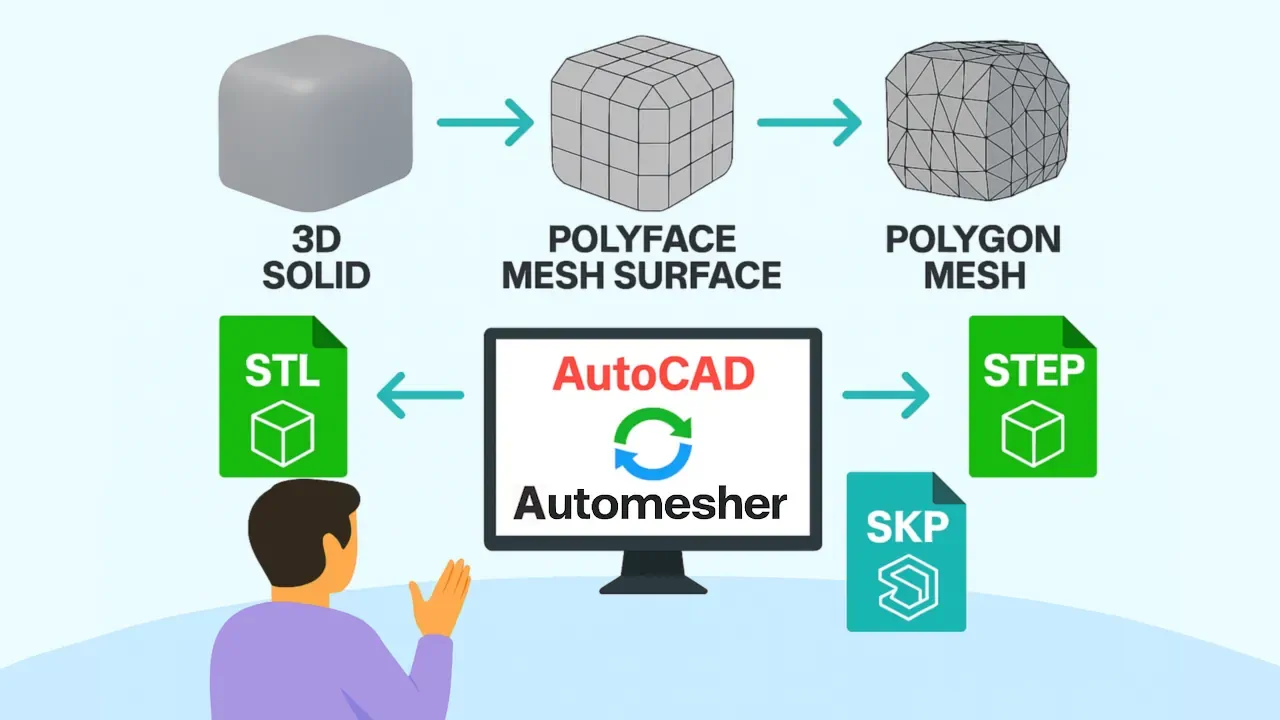
AutoCAD uses several distinct 3D entity types - 3D Solid, Surface, Polyface Mesh, Polygon Mesh, SubD Mesh, and 3D Face - and each has different capabilities, limitations, and compatibility with external tools. Automesher Application adds bidirectional conversion between all of these entity types inside AutoCAD, BricsCAD, ZWCAD, and GstarCAD through the AmConvertMesh command.
AutoCAD 3D Entity Types: What Each One Is For
Understanding why you'd convert between entity types requires knowing what each one does and doesn't support:
| Entity Type | Vertex Limit | Best Used For |
|---|---|---|
| 3D Solid | Unlimited (NURBS) | Engineering, MASSPROP, FILLET, CHAMFER |
| Surface | Unlimited (NURBS) | Freeform surface design |
| Polyface Mesh | 32,767 points | Imported mesh, scan data, lightweight geometry |
| Polygon Mesh | 65,536 vertices | High-resolution mesh, terrain, complex surfaces |
| SubD Mesh | Unlimited | Textured geometry, smooth organic shapes |
| 3D Face | Per-face (3–4 vertices) | Legacy compatibility, maximum compatibility |
Why Convert Polyface Mesh to Polygon Mesh?
Polyface mesh and polygon mesh look identical in a shaded AutoCAD viewport, but they have a key technical difference: polyface mesh is limited to 32,767 points, while polygon mesh supports up to 65,536 vertices. For high-density meshes imported from 3D scanning, photogrammetry, or complex terrain models, this limit matters - a large scan model may exceed the polyface mesh point limit, producing a clipped or incomplete entity.
Converting to polygon mesh resolves this limitation and enables higher-resolution geometry representation within AutoCAD's DWG environment.
Supported Conversion Directions
Automesher's AmConvertMesh command converts between all major 3D entity types inside the DWG. Key conversion paths:
- Polyface Mesh to Polygon Mesh - increase vertex capacity for high-density mesh data; improves representation of complex terrain or scan geometry
- Polygon Mesh to Polyface Mesh - convert back to polyface for compatibility with tools or workflows that specifically require polyface mesh entities
- Polyface Mesh / Polygon Mesh to 3D Face - decompose mesh into individual flat face entities for maximum compatibility with legacy tools and workflows that process face-by-face geometry
- Polyface Mesh / Polygon Mesh to 3D Solid - convert closed watertight mesh to ACIS solid body for Boolean operations, MASSPROP, and STEP/SAT export (requires Fill Holes for non-watertight meshes)
- 3D Solid to Polyface Mesh - tessellate a solid body to polygon mesh for lightweight display, STL/OBJ export, or mesh-based workflows
- Surface to Polyface Mesh - convert surface entities to polyface mesh for STL export, visualization, or mesh-based tools that don't accept surface entities
How to Convert Between 3D Entity Types: Step-by-Step
- Install Automesher Application and restart your CAD software.
- Type AmConvertMesh in the AutoCAD command line and press Enter, or click Convert Mesh in the Automesher ribbon.
- Select the 3D entity or entities to convert and press Enter to confirm the selection.
- In the conversion dialog, choose the target entity type - Polygon Mesh, Polyface Mesh, 3D Solid, 3D Face, SubDMesh, or Surface.
- For mesh-to-solid conversion, enable Fill Holes to close open boundaries and Fix Geometry to repair non-manifold edges before conversion.
- Click OK. The selected entities are converted in place.
Frequently Asked Questions
What is the difference between polyface mesh and polygon mesh in AutoCAD?
Both are polygon mesh types, but polyface mesh is limited to 32,767 points while polygon mesh supports up to 65,536 vertices. They are otherwise similar in display and export behavior. Most imported mesh data arrives as polyface mesh - converting to polygon mesh is necessary when the imported mesh exceeds the polyface point limit.
Why would I convert a 3D solid to polyface mesh instead of using STLOUT?
AutoCAD's built-in STLOUT exports a solid to STL directly but with no tessellation quality control. Converting to polyface mesh first (with FACETRES set appropriately) lets you inspect the mesh quality in the viewport before exporting, and then export to STL, OBJ, or other formats using Automesher's AmExportMesh with full format options.
Can I convert multiple entities at once?
Yes. Use a window or crossing selection to select multiple entities before pressing Enter in AmConvertMesh. All selected entities of compatible types are converted in a single operation.
Is there a free trial?
Yes. Automesher Application is available as a free evaluation download with a limited number of conversion operations.
Summary
Automesher Application converts between all major AutoCAD 3D entity types - 3D Solid, Surface, Polyface Mesh, Polygon Mesh, SubD Mesh, and 3D Face - through the AmConvertMesh command in AutoCAD, BricsCAD, ZWCAD, and GstarCAD. Polygon mesh supports twice the vertex count of polyface mesh (65,536 vs 32,767), making it the right target for high-density scan or terrain data. For solid-to-mesh conversion, set FACETRES before converting to control tessellation quality.
👉 Ready to convert? Download Automesher Application and try it free.