A standard JPEG photograph carries no depth information - it is a flat grid of pixels. But the brightness, contrast, and color variation across the image do imply depth: a bright sky sits far from a dark foreground, a shadow defines a surface angle, highlights on a face map to its raised geometry. AI-based depth estimation exploits this to generate a plausible heightmap from any photograph, which can then be extruded into a 3D mesh and exported as GLTF or GLB.
Autoconverter performs this entire pipeline - depth map generation, mesh construction, texture mapping, and GLTF/GLB export - in three steps from a single interface. The output is a textured 3D relief model: a mesh whose surface height at each point corresponds to the estimated depth at that pixel, with the original image applied as a texture. The result opens in any GLTF-compatible viewer, game engine, AR platform, or 3D slicer without further processing.
What the Output Actually Is - and What It Is Not
It is important to understand what image-to-3D conversion produces before deciding whether it fits your use case. The output is a relief mesh - a heightfield where each pixel of the source image becomes a vertex displaced along the Z axis according to the AI-estimated depth. This is different from full photogrammetric reconstruction or manual 3D modeling:
| Property | JPEG-to-GLTF relief (Autoconverter) | Photogrammetry (multi-photo scan) |
|---|---|---|
| Input required | Single photo | 50–200+ overlapping photos |
| Geometry accuracy | AI estimate - plausible, not measured | Photogrammetric - measurable accuracy |
| Back faces / undercuts | ❌ No - heightfield only | ✅ Yes - full 360° capture possible |
| Texture quality | Original photo applied directly | Photo-real baked texture |
| Setup time | Seconds | Hours (capture + processing) |
| Best for | Relief art, terrain, visual props, AR previews | Dimensional inspection, heritage documentation |
Supported Input Image Formats
- JPEG / JPG - Best for photographs; JPEG compression artifacts can affect depth map quality - use highest available quality setting
- PNG - Lossless; preferred for images with sharp edges or text; supports transparency (alpha channel ignored for depth estimation)
- BMP - Uncompressed bitmap; large file size but no compression artifacts
- GIF - Limited to 256 colors; reduced color depth may reduce depth map accuracy for photographic content
How the AI Depth Map Generation Works
Autoconverter's depth estimation analyzes the luminance and color gradient structure of the image to infer relative depth at each pixel. Regions that are brighter, higher-contrast, or exhibit focus-blur patterns typical of foreground subjects are assigned higher depth values; darker, lower-contrast, or atmospherically hazy regions are assigned lower values. The resulting grayscale depth map is then used as a displacement function: each image pixel becomes a mesh vertex at XY coordinates corresponding to its pixel position, displaced along Z by an amount proportional to its depth value.
How to Convert JPEG to GLTF or GLB
-
📂 Load Your Image in Autoconverter
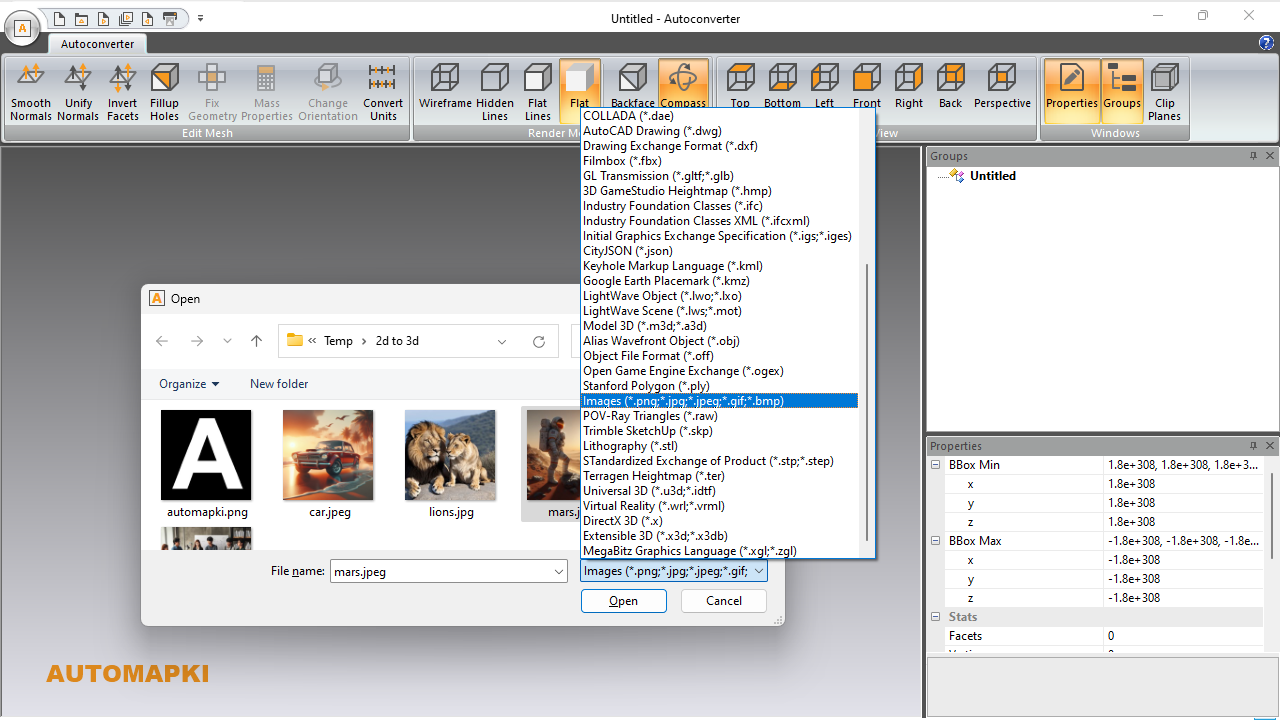
Click Open… in the ribbon and select your JPEG, PNG, BMP, or GIF file. Autoconverter loads the image and displays it in the viewport as a flat plane, ready for depth processing. For best results, use an image where the subject has clear contrast against the background - portraits, landscapes, architectural facades, and relief sculptures all work well.
-
🧠 Generate the 3D Depth Map
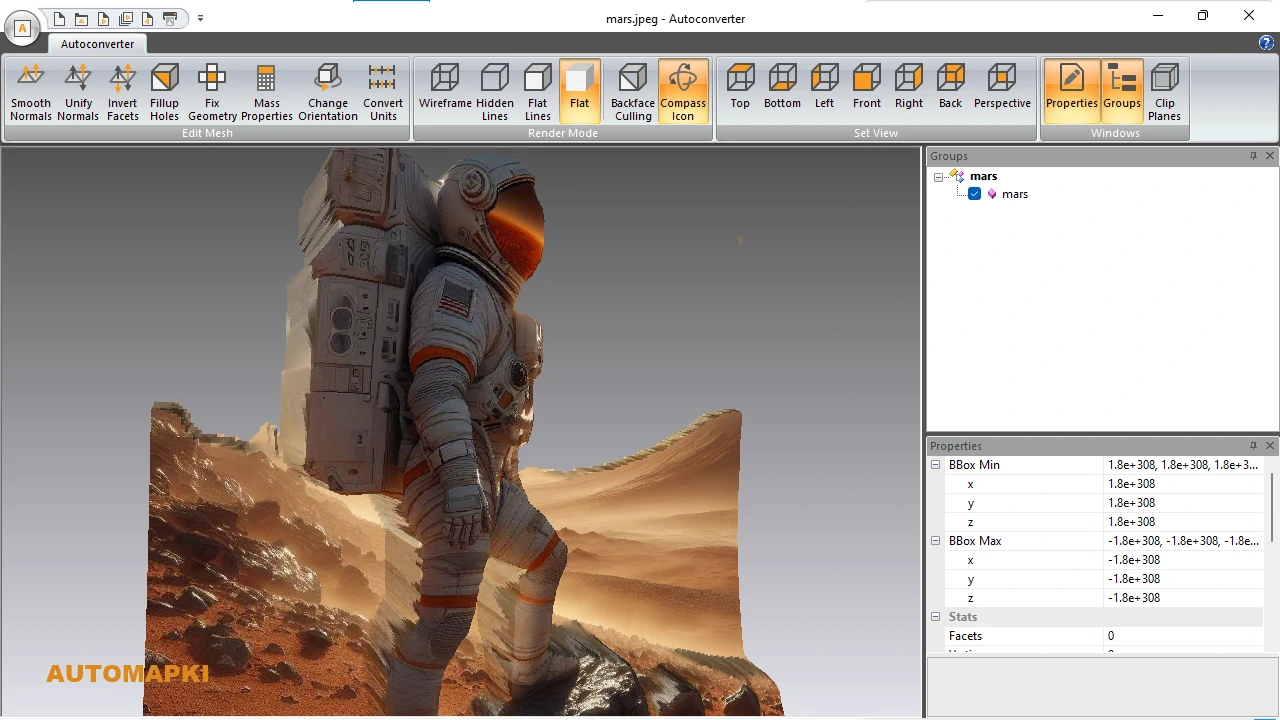
Click Open again to trigger AI depth analysis. Autoconverter processes the image - analyzing brightness gradients, edge sharpness, and color distribution - and generates a heightmap. The viewport updates to show the 3D relief mesh with the photo texture applied. Review the result: check that raised areas correspond to the intended foreground subjects and that the depth relief looks proportional. Images with strong subject–background separation produce the most convincing relief geometry.
-
💾 Export as GLTF or GLB
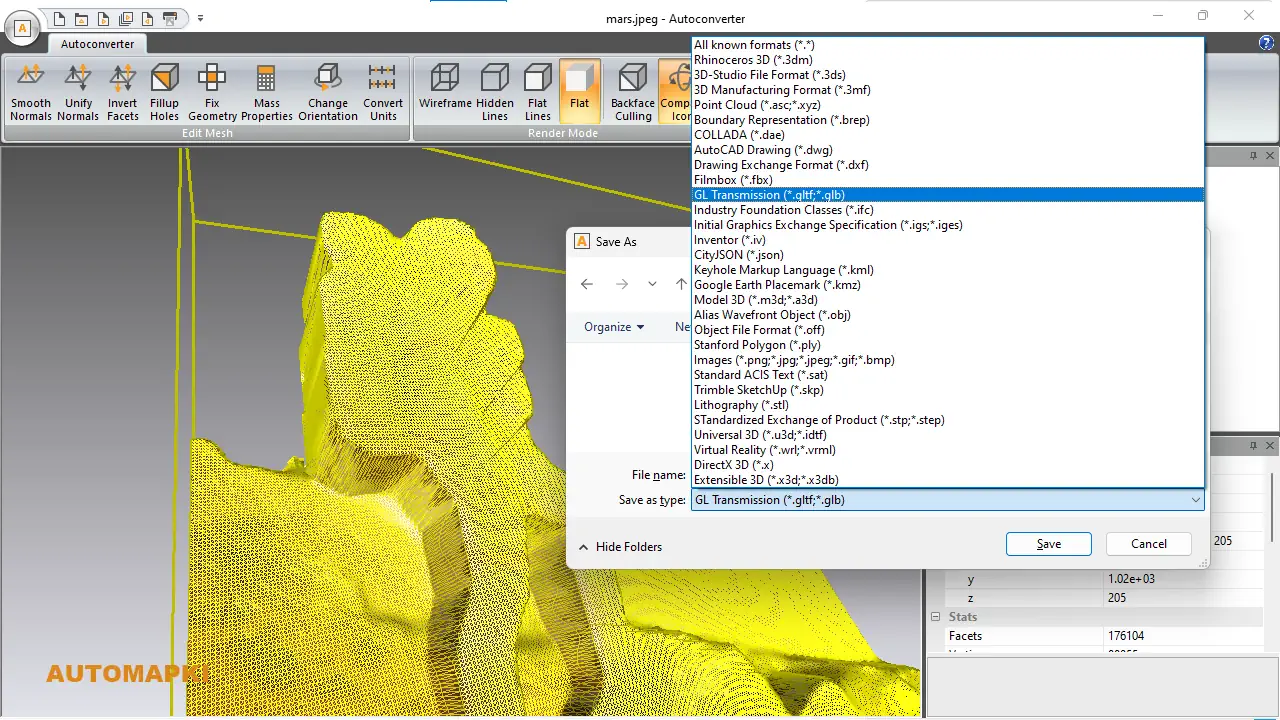
Click Save As… and choose GLTF or GLB as the output format. GLTF exports a .gltf JSON file alongside a .bin geometry buffer and a separate texture image file - three files that must be kept together. GLB packages all three into a single binary .glb file, which is easier to share, email, or upload to web viewers and AR platforms. For most use cases, GLB is the better choice.
GLTF vs GLB - Which Output Format to Choose
| Property | GLTF | GLB |
|---|---|---|
| File structure | JSON + .bin + texture files (separate) | Single binary container |
| Portability | ⚠️ Must keep all files together | ✅ Single file - easy to share |
| Human-readable | ✅ Yes - JSON is inspectable | ❌ Binary |
| Web viewer / model-viewer support | ✅ Yes | ✅ Yes - preferred for web embedding |
| AR (Apple AR Quick Look, Android SceneViewer) | ⚠️ Less common | ✅ Preferred - direct upload supported |
| Editing in Blender, Babylon.js, Three.js | ✅ Yes | ✅ Yes |
Common Use Cases
- 3D-printed portrait or landscape relief: A photograph of a face, mountain range, or cityscape is converted to a GLB relief mesh, then exported from Autoconverter to STL for slicing. The printed result is a physical bas-relief where surface height encodes depth - a common technique for commemorative plaques, wall art, and gift items.
- AR product preview from product photo: A single product photograph is converted to a GLB relief and uploaded to a web AR viewer. Customers can place a 3D approximation of the product in their environment via phone camera before purchasing - achievable from a single studio photo without a 3D modeling budget.
- Terrain tile for game or simulation: A satellite or aerial photograph is converted to a GLB heightfield terrain tile. The photo texture provides realistic ground cover while the depth displacement provides terrain geometry - useful for rapid prototyping of game levels or simulation environments.
- Digital art and NFT creation: Artists convert 2D photographs or illustrations to GLTF relief models to create 3D versions of their 2D work for display in virtual galleries or as interactive NFT assets.
- Heritage documentation relief: Photographs of coins, inscriptions, carved panels, or fossils are converted to GLB relief models for digital archiving, publication, or educational display - providing a 3D-browsable record without requiring physical access to the object.
- Educational 3D content from stock photos: Educators create 3D relief models from geographic maps, anatomical illustrations, or historical photographs for use in VR learning environments - converting existing 2D teaching materials into interactive 3D assets without custom modeling.
Frequently Asked Questions
Does this produce a true 3D model or just a flat image mapped onto a plane?
It produces a genuine 3D mesh - a surface with vertex positions displaced in 3D space according to the AI depth estimate. The output GLTF or GLB file contains real geometry: vertex coordinates, face indices, normals, and UV-mapped texture. You can open it in Blender, import it into a game engine, or load it in an AR viewer and it will exhibit 3D parallax as the viewpoint changes.
Why does the 3D model look flat even though it exported successfully?
The depth displacement scale may be too low relative to the image dimensions. This happens with images that have low overall contrast - the AI cannot distinguish significant depth variation and generates a shallow heightmap. Try to use a source image with stronger foreground–background contrast.
Can I convert a PNG with transparency to GLTF?
Yes. Autoconverter accepts PNG files including those with an alpha channel. The transparency channel is not used for depth estimation - depth is derived from the RGB color data. The original PNG including its alpha channel is applied as the texture, so transparent areas of the source image will appear transparent in the GLTF output, which is useful for creating reliefs with cut-out backgrounds.
What is the difference between GLB output from this process and a GLB from a 3D scanner?
A scanner-derived GLB is photogrammetrically reconstructed from many photographs or laser range measurements - it has measurable geometric accuracy and typically captures all visible faces of an object including sides and back. The JPEG-to-GLB relief from Autoconverter is a single-sided heightfield estimated from one photograph. It is suitable for visual and artistic purposes but not for dimensional measurement, engineering, or inspection workflows.
Is there a free trial of Autoconverter?
Yes. Download the free trial of Autoconverter to convert your own images to GLTF and GLB before purchasing.
Summary
Autoconverter's AI depth estimation converts any JPEG, PNG, BMP, or GIF photograph into a textured GLTF or GLB 3D relief mesh in three steps - open the image, trigger depth generation, export. The output is a genuine 3D mesh with the source photo applied as a texture, suitable for 3D printing, AR/VR display, game assets, digital art, and web model viewers. GLB is the recommended output format for single-file portability and AR platform compatibility. For best results, use high-quality source images with strong foreground–background contrast.
👉 Ready to convert? Download Autoconverter and try it for free.