USD (Universal Scene Description) has become the standard interchange format for large-scale 3D pipelines in VFX, animation, game development, and augmented reality. If you need to convert existing 3D assets from OBJ, FBX, SKP, DAE, STL, or other common formats into USD, USDA, USDC, or USDZ, this guide shows how to do it in four steps using Autoconverter on Windows.
USD Variants: Which Format Should You Export To?
Choosing the right USD variant depends on your workflow and downstream application. Here is when to use each:
- USD (.usd) - the base format; applications choose binary or ASCII encoding automatically. Use when compatibility with the widest range of USD tools is the priority.
- USDA (.usda) - plain-text ASCII USD. Human-readable and manually editable in any text editor. Use when you need to inspect or hand-edit scene data, or when working with scripts and version control systems that benefit from text-based diffs.
- USDC (.usdc) - binary crate format. Compact and fast to load; significantly smaller file sizes than USDA for large scenes. Use for production pipelines where load performance matters - Houdini, Katana, and most DCC tools prefer USDC.
- USDZ (.usdz) - a ZIP archive containing a USDC file and all referenced assets (textures, audio). Use for Apple AR Quick Look, iOS/macOS 3D content, and any scenario where a self-contained single-file distribution is needed.
Supported Input Formats
Autoconverter converts the following 3D formats to any USD variant:
- OBJ - Wavefront mesh, widely used in Blender, Maya, and online repositories
- FBX - from Maya, 3ds Max, Unity, Unreal Engine, and other animation tools
- SKP - from SketchUp architectural and product models
- DAE - Collada from various DCC tools and game engines
- BLEND - Blender native format
- STL - from 3D printers and scanning workflows
- 3DM - from Rhinoceros 3D
- GLTF / GLB - from web 3D and game engines
- 3DS - legacy 3ds Max format
- PLY - from 3D scanning and point cloud tools
- IFC - from BIM platforms (Revit, ArchiCAD)
- STEP / STP - from engineering CAD systems
How to Convert 3D Files to USD Format: Step-by-Step
🚀 Download and Launch Autoconverter
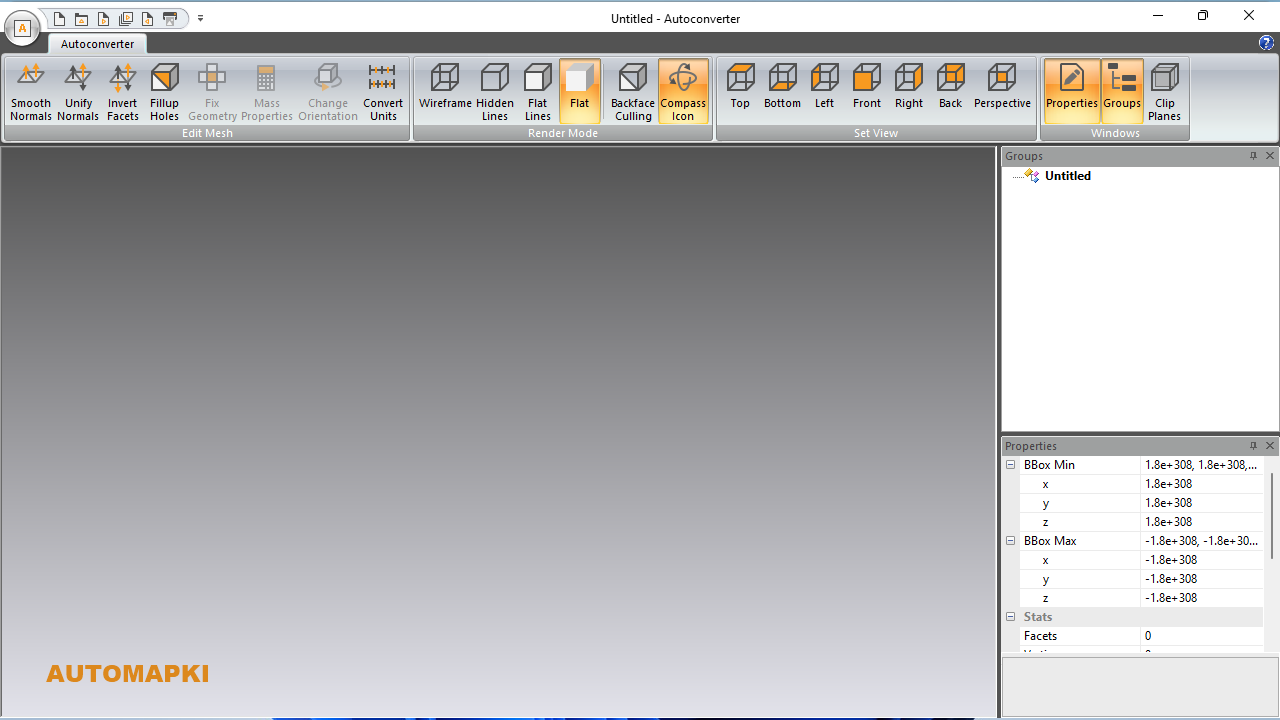
Download Autoconverter and install it on Windows. Launch it from the Windows Start menu. The interface includes a 3D viewport, ribbon bar, and properties panel.
📂 Open Your Source 3D File
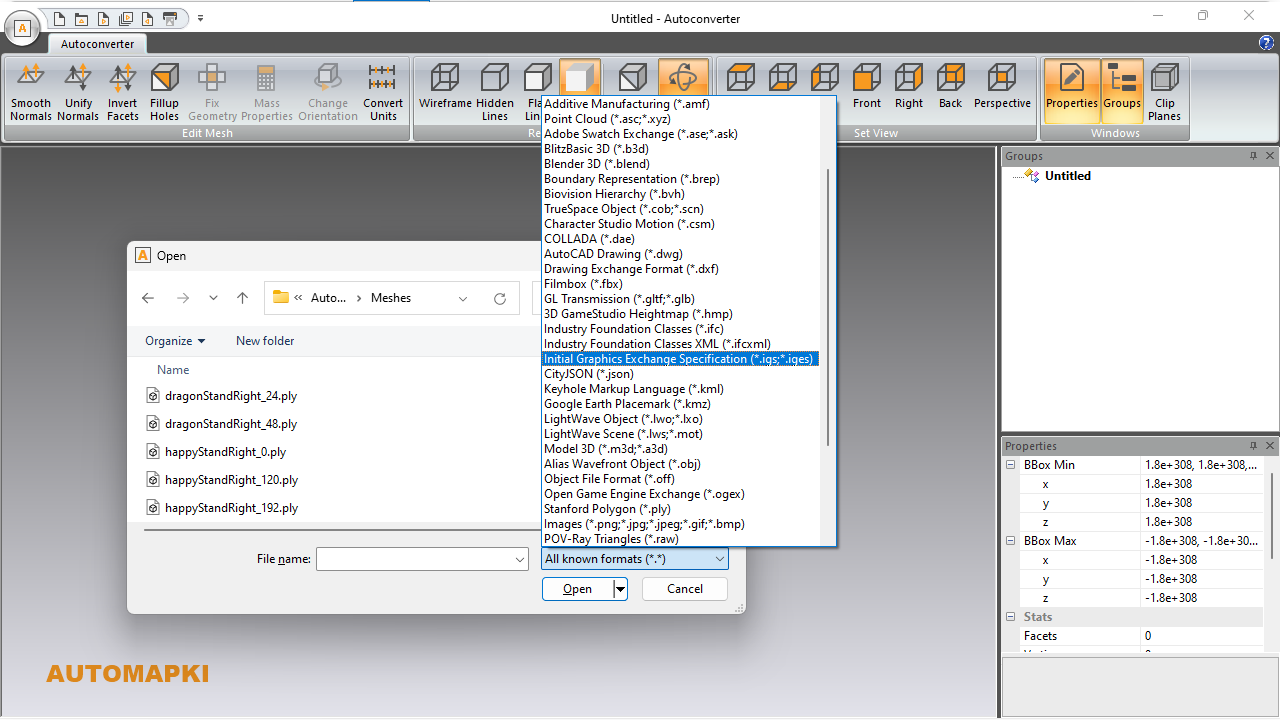
Click Open… and select your source file - OBJ, FBX, SKP, DAE, BLEND, or any other supported format. The model loads into the 3D viewport. For OBJ files, make sure the MTL file and texture images are in the same folder so materials load correctly before conversion.
📄 Select the USD Output Variant
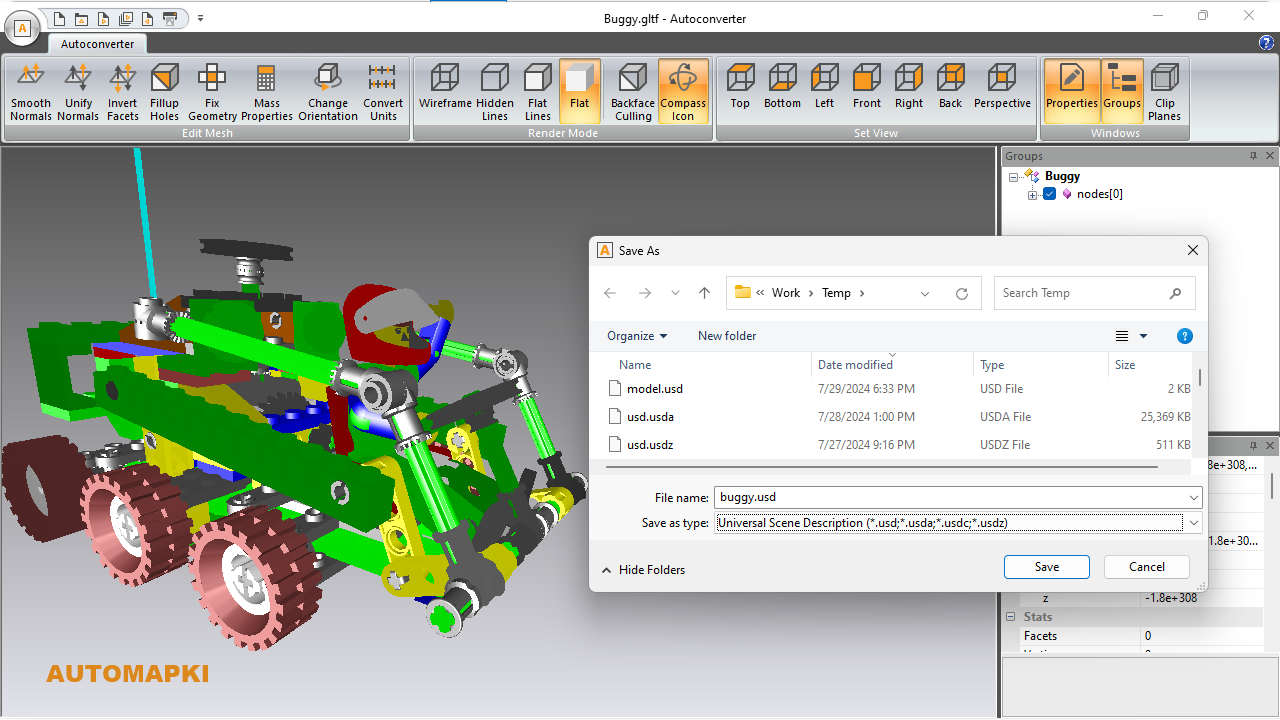
Click Save As… and select your target USD format from the file type dropdown:
- .usd - base format, compatible with all USD applications
- .usda - ASCII text, for editing and scripting workflows
- .usdc - binary crate, for production pipelines requiring fast load times
- .usdz - self-contained archive for AR and Apple ecosystem distribution
📤 Export and Verify
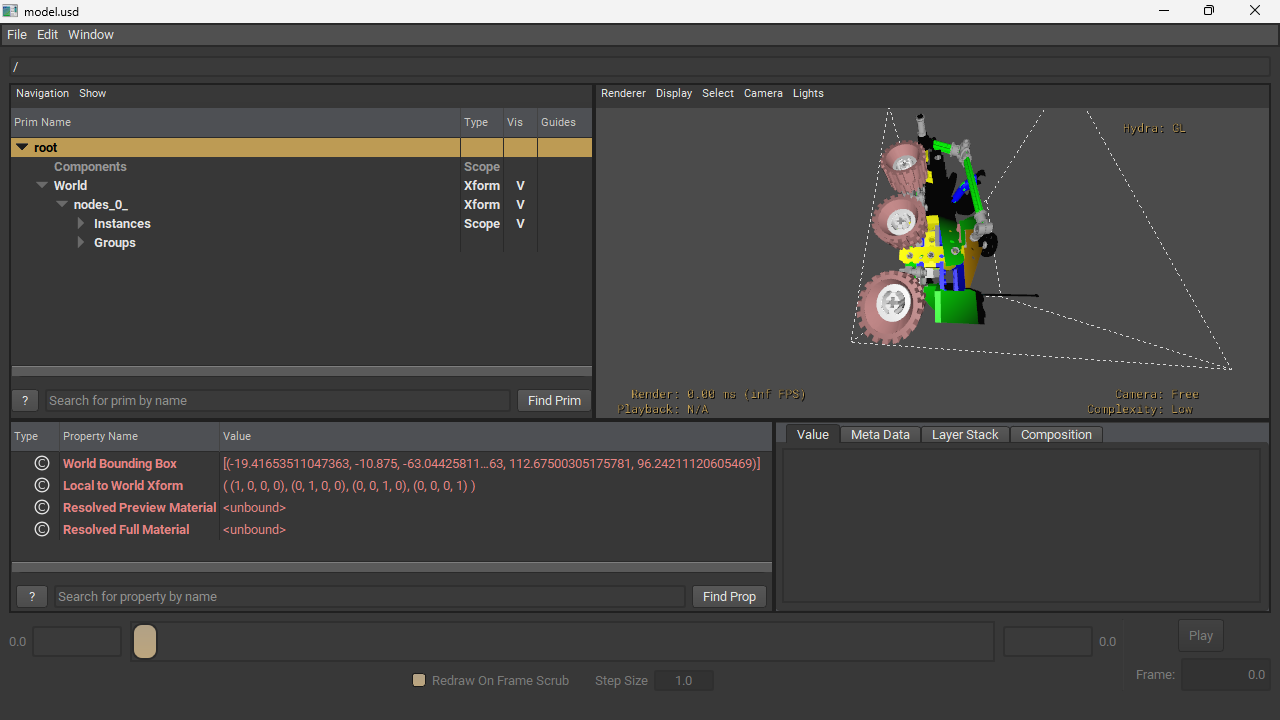
Choose your output filename and destination folder, then click Save. Autoconverter processes the file and writes the USD output. Verify the result by opening it in your target application - Unreal Engine (5.0+), Houdini, Omniverse, Apple Reality Composer, or any USD-compatible tool.
Frequently Asked Questions
-
Which USD variant should I choose for Apple AR Quick Look?
Use USDZ. It is the only USD variant supported by Apple's AR Quick Look on iOS and macOS. USDZ bundles the geometry and all textures in a single self-contained archive that can be shared via email, AirDrop, or embedded in websites for one-tap AR viewing on iPhone and iPad.
-
Which USD variant is best for Unreal Engine or Houdini?
Use USDC (binary crate). It is the preferred format for production pipelines because it loads significantly faster than USDA and is more compact. Unreal Engine, Houdini, and Omniverse all prefer USDC for imported USD assets.
-
Will textures be preserved when converting to USDZ?
Yes. For USDZ output, Autoconverter bundles all referenced texture images inside the USDZ archive. For USD/USDA/USDC output, textures are referenced as external files - keep them in the same folder as the USD file.
-
Can I convert USDZ files back to OBJ or other formats?
Yes. Autoconverter converts in both directions - see the USDZ to OBJ conversion guide for the reverse workflow.
-
Is there a free trial?
Yes. The free evaluation version of Autoconverter supports up to 10 file conversions. The full licensed version provides unlimited conversions and batch processing.
Summary
Autoconverter converts OBJ, FBX, SKP, DAE, BLEND, STL, and other common 3D formats to USD, USDA, USDC, or USDZ in four steps on Windows. Choose USDZ for Apple AR and self-contained distribution, USDC for production pipelines and game engines, USDA for editable text-based workflows, and USD for broad general compatibility.
👉 Ready to convert? Download Autoconverter and try it free for up to 10 conversions.