Converting DWG files one at a time is impractical when you have dozens or hundreds of drawings to process. Automesher Application adds the AmBatchConvert command to AutoCAD, BricsCAD, ZWCAD, and GstarCAD, letting you convert entire folders of DWG files to 3D mesh formats - or downgrade them to older DWG versions - in a single unattended run.
What AmBatchConvert Does
AmBatchConvert processes multiple DWG files automatically inside your CAD application, exporting 3D geometry from each drawing to a specified output format. Two distinct use cases are supported:
- DWG to 3D format - export 3D solid and mesh geometry from multiple DWG files to FBX, SKP, OBJ, DAE, STL, or other supported formats in one pass
- DWG version downgrade - convert DWG files saved in newer AutoCAD formats (2024, 2018, 2013) to older versions (R10, R13, R14, 2000, 2004, 2007, 2010) for compatibility with legacy CAD installations
Supported Output Formats
AmBatchConvert exports to the same formats supported by the single-file AmExportMesh command, including:
- FBX - for Unity, Unreal Engine, Maya, and 3ds Max
- SKP - for SketchUp (choose target version in export settings)
- OBJ - for Blender, rendering tools, and general 3D interchange
- DAE - for Collada-compatible applications
- STL - for 3D printing and mesh-based workflows
- DWG (older version) - downgrade from newer DWG formats to R10, R13, R14, 2000, 2004, 2007, or 2010 for legacy compatibility
How to Batch Convert DWG Files: Step-by-Step
🚀 Execute AmBatchConvert Command
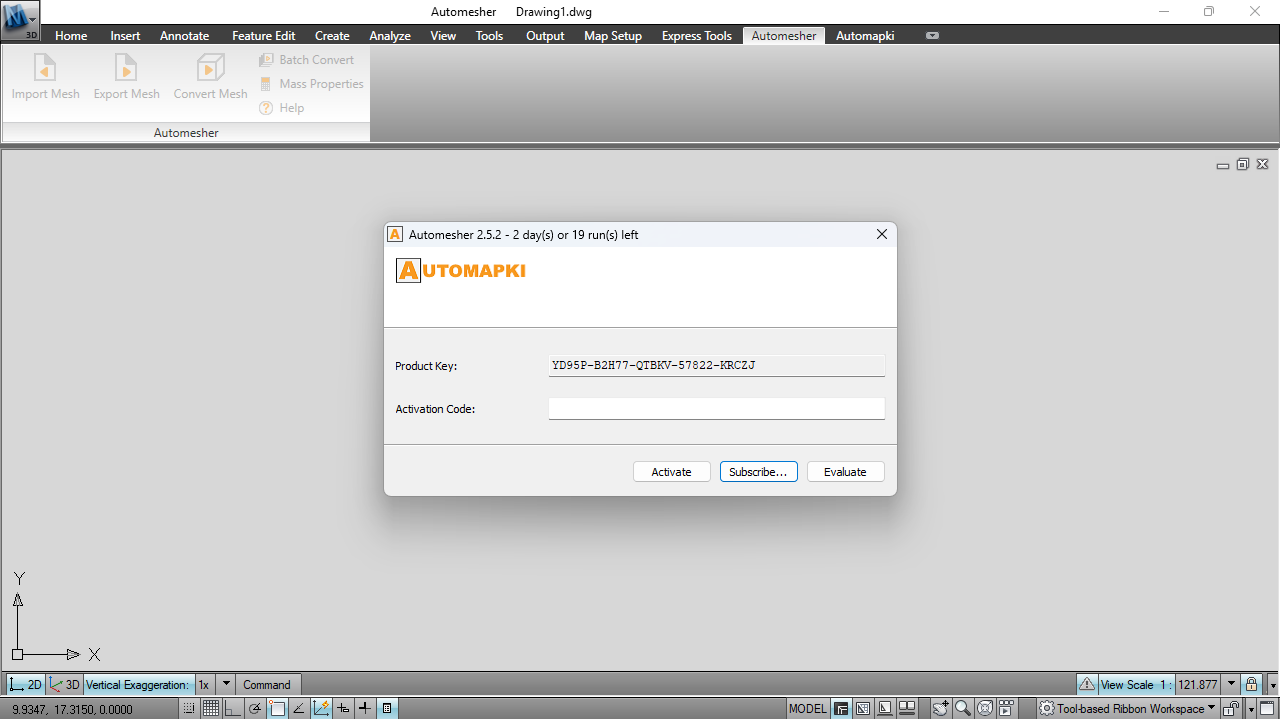
Install Automesher Application and restart your CAD platform - AutoCAD, BricsCAD, ZWCAD, or GstarCAD. Type AmBatchConvert in the command line and press Enter to open the Batch Convert dialog.
📂 Add DWG Files or Folders
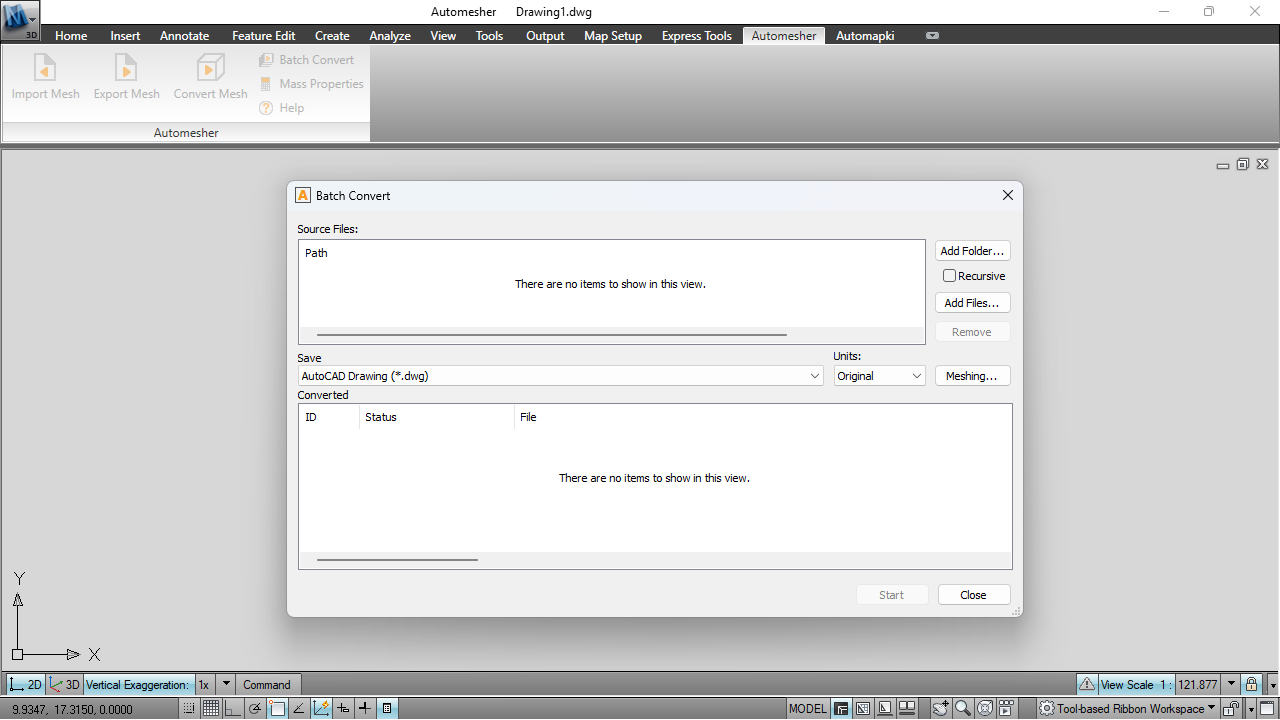
Click Add Files… to select individual DWG files, or click Add Folder… to load all DWG files from a directory. You can add multiple files and folders from different locations in a single batch queue.
✅ Enable Recursive Mode (Optional)
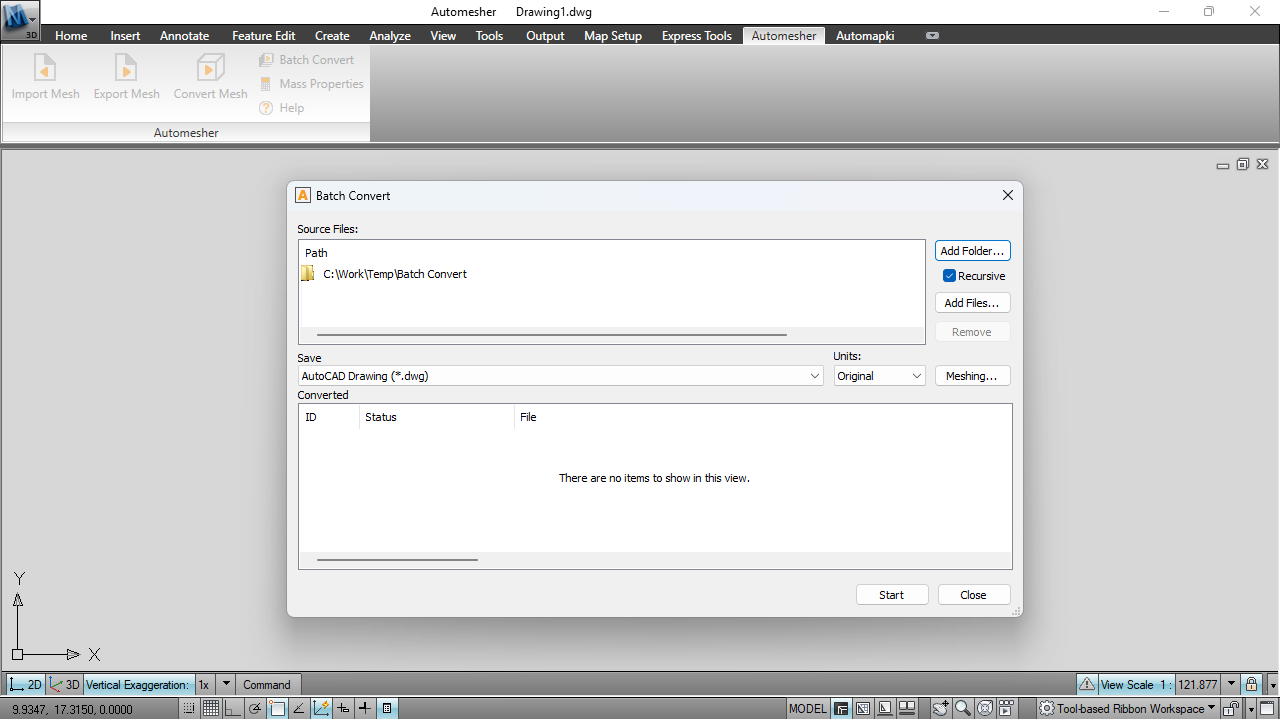
Check the Recursive option to automatically include DWG files from all subfolders within any added folder. This is the most efficient approach for project directory trees where drawings are organized across multiple nested folders.
📄 Choose Output Format and Settings
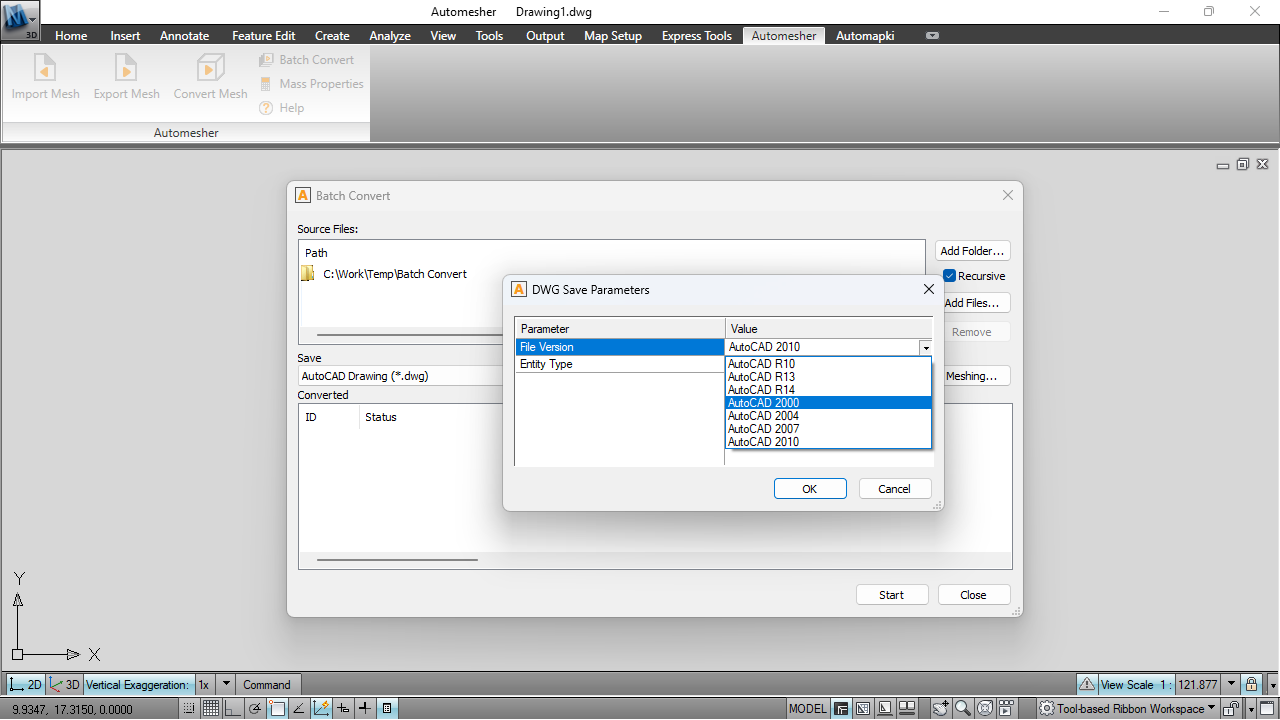
Select your target format from the dropdown. For DWG version downgrade, select the target AutoCAD version - R10 through AutoCAD 2010 are available as targets.
▶️ Start the Batch Conversion
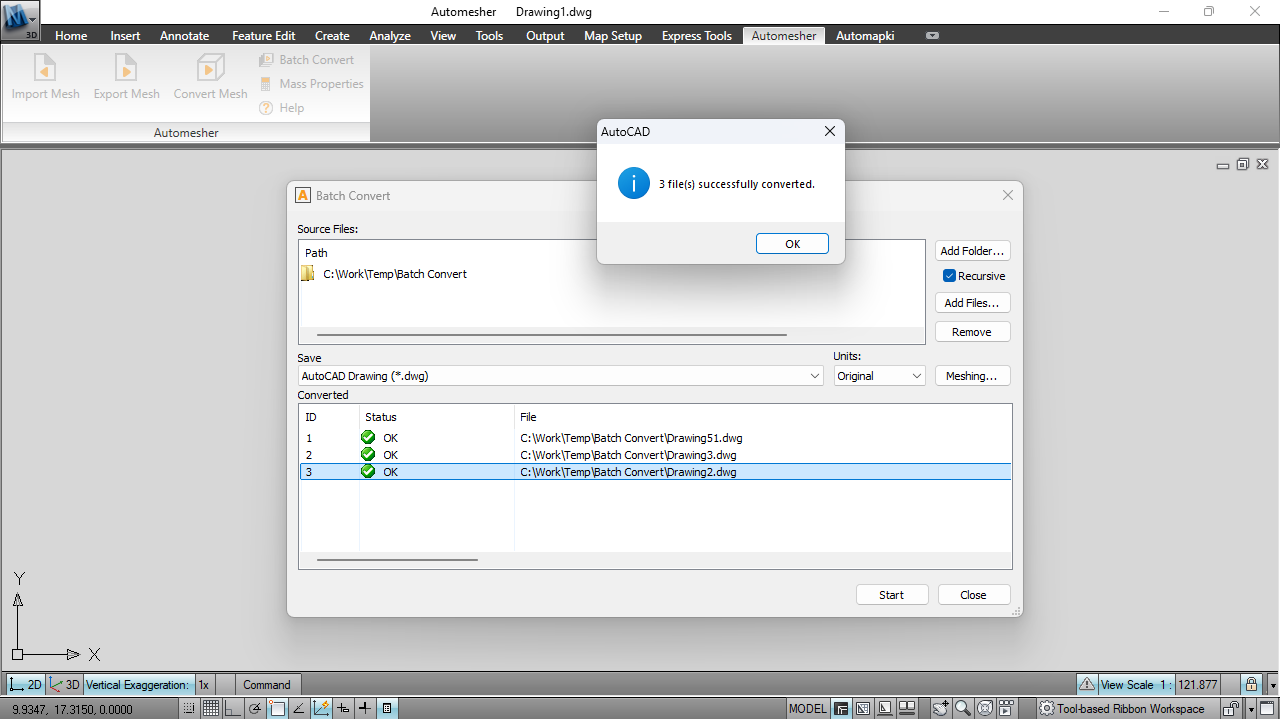
Click Start to begin processing. AmBatchConvert opens each DWG file in sequence, runs the export, and saves the output. A progress log displays the status of each file as it's processed - review it after completion to identify any drawings that encountered geometry export errors.
Frequently Asked Questions
-
Can AmBatchConvert process subfolders automatically?
Yes. Enable the Recursive option in Step 3 and AmBatchConvert processes all DWG files in the selected folder and all its subfolders, preserving the folder structure in the output directory.
-
What DWG versions can I downgrade to?
R10, R13, R14, 2000, 2004, 2007, and 2010 are all available as target versions. AutoCAD 2010 format is the safest general-purpose downgrade target - it's readable by AutoCAD 2013 through current releases, and by all modern versions of BricsCAD, ZWCAD, and GstarCAD.
-
Is there a free trial?
Yes. Automesher Application is available as a free evaluation download. The trial allows a limited number of batch operations so you can test the full workflow before purchasing.
Summary
AmBatchConvert processes entire folders of DWG files in one unattended run - exporting 3D geometry to FBX, SKP, OBJ, DAE, and STL, or downgrading DWG files to older AutoCAD versions for legacy compatibility. Recursive folder support, a conversion log, and compatibility with AutoCAD, BricsCAD, ZWCAD, and GstarCAD make it the practical choice for any multi-file DWG workflow.
👉 Ready to batch convert? Download Automesher Application and try it free.