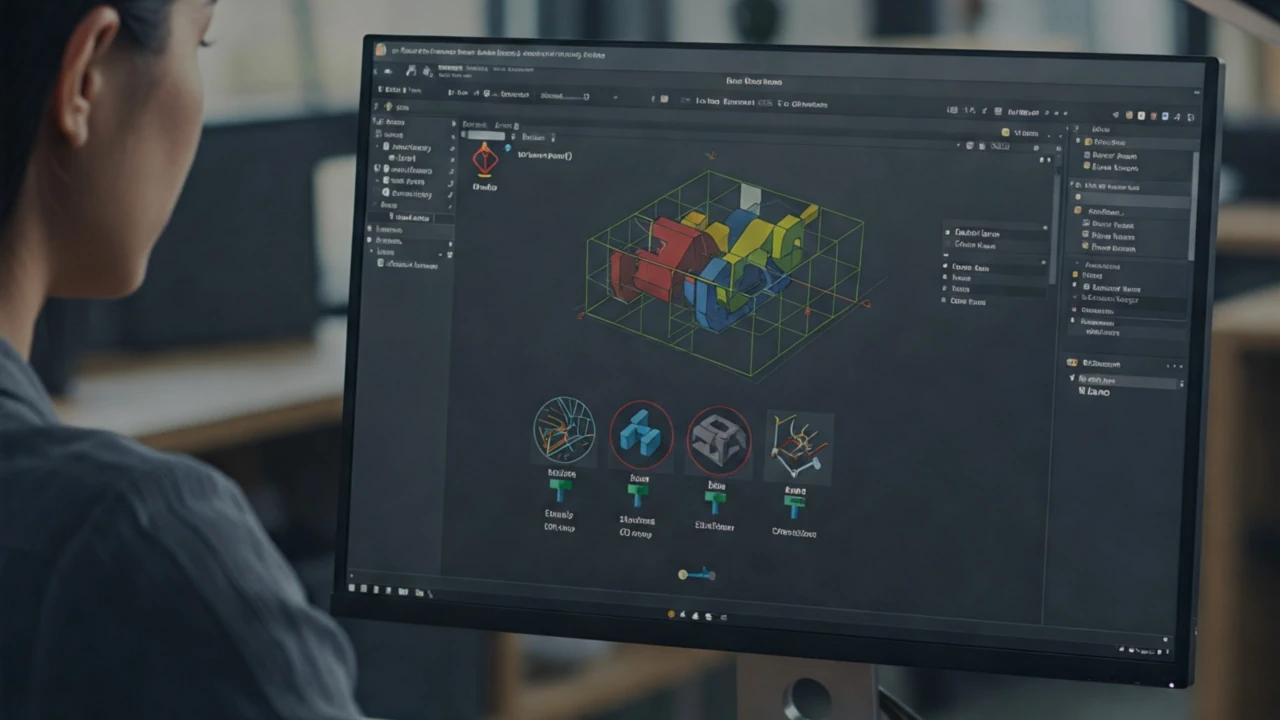
Creating a DWG file from a 3D model has traditionally required an AutoCAD license - you open the file in AutoCAD and save as DWG. That requirement adds cost, installation overhead, and a dependency on Autodesk software for a task that is fundamentally just a file format conversion.
Autoconverter converts STL, OBJ, FBX, SKP, DAE, STEP, IGES, GLTF, 3DM, IFC, and other 3D formats directly to AutoCAD DWG as a standalone Windows application - no AutoCAD installation required. The output DWG files use the AutoCAD 2000 format, compatible with all AutoCAD versions from 2000 through current.
What Gets Written to the DWG File
Autoconverter writes 3D geometry to DWG as polyface mesh entities - the standard DWG representation for polygon mesh geometry that all AutoCAD-compatible applications read correctly.
Polyface mesh is the right choice for converting 3D models to DWG because it accurately represents any polygon mesh surface and is universally supported across AutoCAD, BricsCAD, ZWCAD, GstarCAD, and any other DWG-compatible application. The output DWG opens directly in any of these tools without import steps.
For users who need the DWG geometry as 3D solid bodies rather than polyface mesh - for FILLET, CHAMFER, MASSPROP, and Boolean operations - the next step is to open the DWG in AutoCAD or BricsCAD and use the AmConvertMesh command from Automesher Application to convert the polyface mesh to solid.
Supported Input Formats
Autoconverter converts the following 3D formats to DWG:
- STL - 3D printer and scan data (binary and ASCII)
- OBJ - Blender, Maya, and general 3D interchange
- FBX - Unity, Unreal Engine, Maya, and animation tools
- SKP - SketchUp architectural and design models
- DAE - Collada cross-application interchange
- STEP/STP - engineering CAD from SolidWorks, CATIA, Creo, Inventor
- IGES/IGS - legacy engineering CAD interchange
- 3DM - Rhinoceros 3D models
- GLTF/GLB - web 3D and AR models
- IFC - BIM models from Revit and ArchiCAD
- 3MF - modern 3D manufacturing format
- PLY - 3D scan and point cloud data
- USD/USDZ - Apple AR and Pixar Universal Scene Description
- And 20+ additional formats
DWG Version Compatibility
Autoconverter outputs DWG files in the AutoCAD 2000 DWG format by default. This version is readable by every AutoCAD release from 2000 through current, and by all BricsCAD, ZWCAD, and GstarCAD versions. It provides the broadest compatibility across legacy and current CAD environments without any version-specific conversion step.
If a specific newer DWG version is required, open the AutoCAD 2000 DWG in AutoCAD or another DWG editor and save it to the target version - a trivial operation in any CAD application.
How to Convert 3D Files to DWG: Step-by-Step
- Download and install Autoconverter on Windows. Launch it from the Start menu.
- Click Open and load your source 3D file (STL, OBJ, FBX, SKP, STEP, or any supported format).
- Click Save As and select AutoCAD Drawing (*.dwg) from the format dropdown.
- Choose your output filename and destination folder, then click Save. Autoconverter writes the 3D geometry as polyface mesh entities in a standard DWG file.
For batch conversion of an entire folder of 3D files to DWG, use Batch Convert - add the source folder, select DWG as the output format, and click Start. See the batch conversion guide for details.
Common 3D to DWG Use Cases
- STL to DWG - convert 3D printer files or scan data to DWG for use as reference geometry in AutoCAD technical drawings, dimensions, and sections
- OBJ to DWG - bring Blender, Maya, or online 3D model repository files into AutoCAD as polyface mesh for drafting, annotation, and coordination
- FBX to DWG - convert game engine or animation assets to DWG for integration into CAD design workflows
- SKP to DWG - import SketchUp architectural models into AutoCAD for detail design and construction documentation
- STEP to DWG - convert engineering CAD geometry to DWG for use in AutoCAD without SolidWorks or CATIA
- IFC to DWG - convert BIM models from Revit or ArchiCAD to DWG for coordination drawings in AutoCAD
- GLTF to DWG - convert web 3D or AR models to DWG for integration into CAD project documentation
Frequently Asked Questions
Does AutoCAD need to be installed to convert to DWG?
No. Autoconverter writes DWG files natively using the Open Design Alliance (ODA) DWG library. No AutoCAD, BricsCAD, or other CAD software needs to be installed on the conversion machine.
Can I convert STEP or IGES engineering files to DWG?
Yes. Autoconverter reads STEP and IGES natively and converts the geometry to DWG polyface mesh. The NURBS surfaces from STEP are tessellated to polygon mesh during the conversion. For use as 3D solid bodies in AutoCAD (for FILLET, MASSPROP, etc.), convert the polyface mesh to solid using Automesher's AmConvertMesh command after opening the DWG in AutoCAD.
What DWG version does Autoconverter produce?
AutoCAD 2000 DWG format by default - compatible with all AutoCAD versions from 2000 through current and all BricsCAD, ZWCAD, and GstarCAD versions.
Can I batch convert hundreds of 3D files to DWG at once?
Yes. Use Batch Convert in Autoconverter. Add a source folder, select DWG as the output format, enable recursive folder scanning to include subfolders, and click Start. All supported input formats in the folder are converted to DWG in a single run.
Is there a free trial?
Yes. The free evaluation version of Autoconverter supports up to 10 file conversions. The full licensed version provides unlimited conversions and batch processing.
Summary
Autoconverter converts STL, OBJ, FBX, SKP, DAE, STEP, IGES, GLTF, 3DM, IFC, and 20+ other 3D formats to AutoCAD DWG as a standalone Windows application - no AutoCAD required. Output DWG files contain polyface mesh entities in AutoCAD 2000 format, compatible with all DWG-compatible CAD software. For converting the resulting polyface mesh to 3D solid inside AutoCAD, use Automesher's AmConvertMesh command.
👉 Ready to convert? Download Autoconverter and try it free for up to 10 conversions.