USD (Universal Scene Description) is a 3D format developed by Pixar and widely used in VFX, animation, and AR/VR. USDZ is Apple's compressed variant - used for AR Quick Look on iPhone and iPad, product visualization in Safari, and 3D assets shared across Apple devices. Converting these formats to OBJ, STL, FBX, or GLTF is necessary when you need to use the geometry in Blender, Maya, 3ds Max, or any tool that doesn't natively support USD.
This guide shows how to convert USDZ, USD, USDA, and USDC files to OBJ on Windows in three steps using Autoconverter - no Mac, no Apple tools, no command-line scripts.
What Are USD, USDA, USDC, and USDZ?
All four are variants of Pixar's Universal Scene Description format, each suited to a different use case:
- USD (.usd) - the base format; can be either ASCII or binary depending on the application that wrote it
- USDA (.usda) - ASCII (human-readable) USD; useful for editing scene descriptions in a text editor
- USDC (.usdc) - binary (crate) USD; compact and fast to load, used in production pipelines
- USDZ (.usdz) - a ZIP-compressed archive containing a USDC file and all referenced assets (textures, audio); Apple's standard for AR Quick Look and iOS/macOS 3D content
Autoconverter reads all four variants natively on Windows.
How to Convert USDZ to OBJ: Step-by-Step
📥 Download and Install Autoconverter
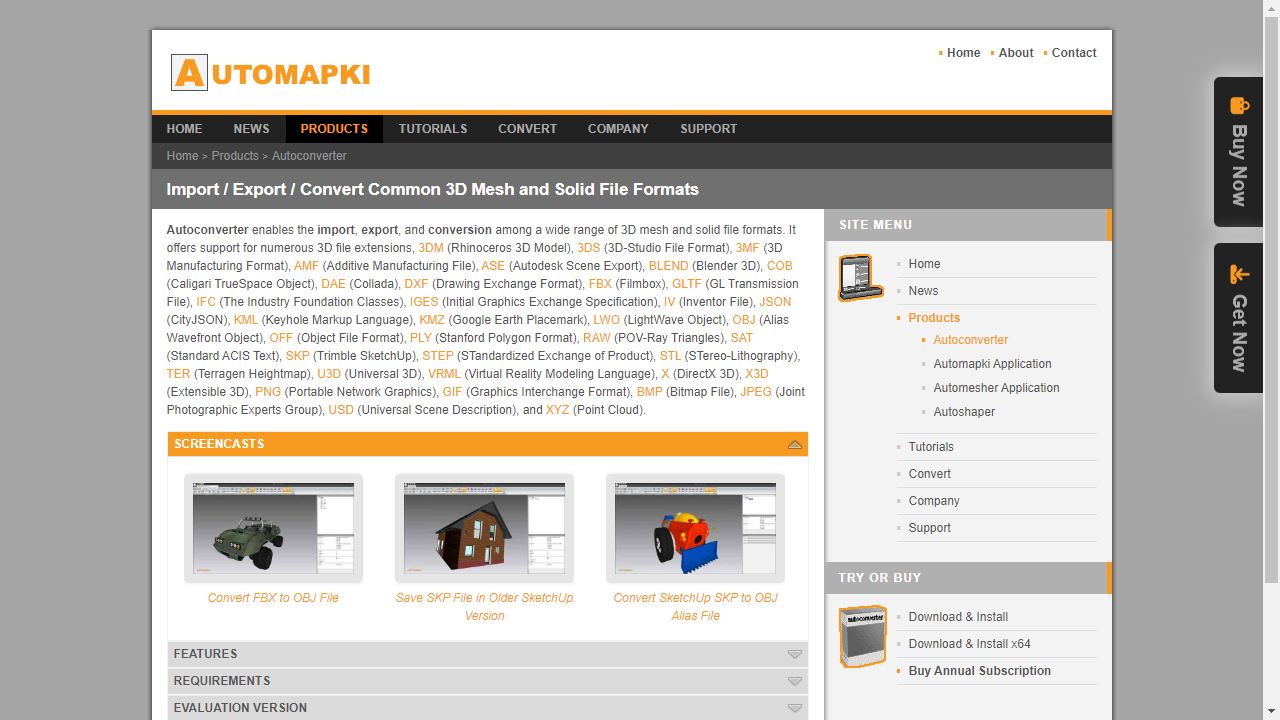
Download Autoconverter and install it on Windows. It reads USD, USDA, USDC, and USDZ files natively - no additional USD runtime, Apple tools, or command-line setup required. Launch it from the Windows Start menu.
📂 Open Your USD or USDZ File
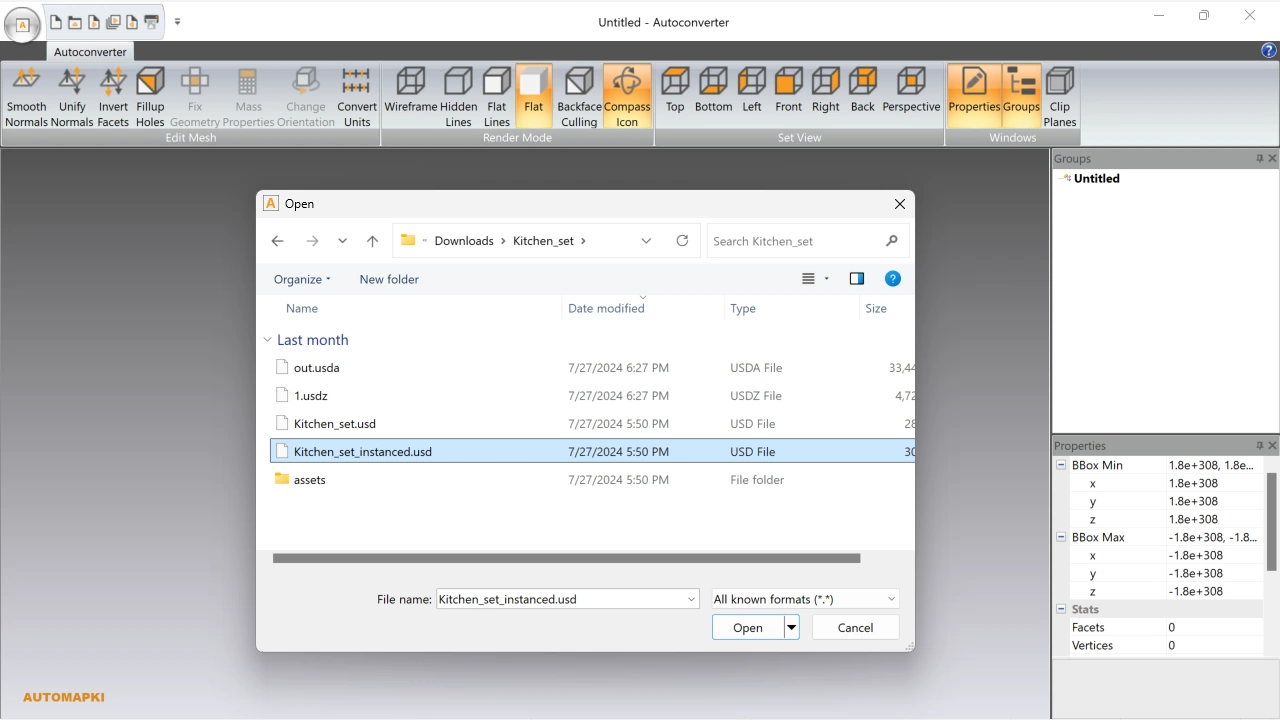
Click Open… and select your .usdz, .usdc, .usda, or .usd file. The model loads into the 3D viewport with geometry, materials, and texture references intact. Inspect it before converting to confirm the file loaded correctly.
USDZ files are ZIP archives - Autoconverter handles the decompression automatically; there is no need to extract the USDZ manually before opening.
💾 Export to OBJ Format
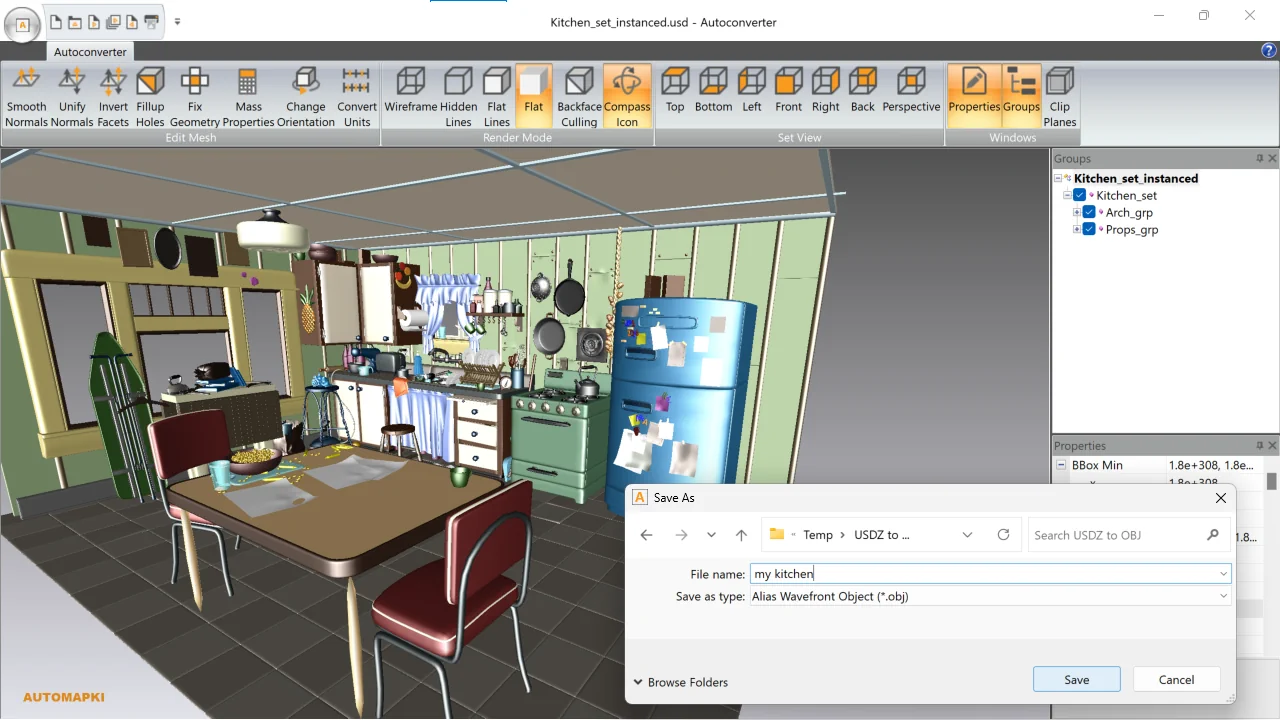
Click Save As…, select Wavefront OBJ (*.obj) from the file type dropdown, choose your output filename and destination folder, then click Save. Autoconverter exports the OBJ file alongside an MTL material file and any referenced texture images - keep all three in the same folder for correct material display in Blender, Maya, or your target application.
Convert USD to Other Formats
Autoconverter exports from USD, USDA, USDC, and USDZ to a wide range of output formats - not just OBJ. The most commonly used alternatives are:
- STL - for 3D printing; USD models converted to print-ready STL
- FBX - for Unity, Unreal Engine, Maya, and 3ds Max pipelines
- GLTF / GLB - for web 3D, web AR, and applications that consume GLTF assets
- SKP - for SketchUp architectural visualization
- DAE - for Collada-compatible cross-application workflows
- STEP / STP - for engineering CAD applications
Frequently Asked Questions
-
Can I convert USDZ files on Windows without a Mac?
Yes. Autoconverter reads and converts USDZ, USD, USDA, and USDC files natively on Windows - no Mac, no Apple tools, and no USD Python runtime installation is required.
-
What is the difference between USDZ and USD?
USD is Pixar's base scene description format. USDZ is Apple's variant - a ZIP archive containing a binary USD (USDC) file and all its referenced assets (textures, etc.) bundled in a single self-contained file. Both open identically in Autoconverter.
-
Will textures from the USDZ file be preserved in the OBJ output?
Yes. Autoconverter extracts texture maps from the USDZ archive and exports them as separate image files referenced in the OBJ's accompanying MTL file. Keep the OBJ, MTL, and texture files in the same folder when importing into Blender or another application.
-
Can I open the converted OBJ in Blender?
Yes. Use File > Import > Wavefront OBJ in Blender. If the MTL and texture files are in the same folder as the OBJ, Blender loads the materials automatically.
-
Is there a free trial?
Yes. The free evaluation version of Autoconverter supports up to 10 file conversions. The full licensed version provides unlimited conversions and batch processing.
Summary
Converting USDZ, USD, USDA, and USDC files to OBJ is a three-step process in Autoconverter - open the file, export to OBJ, verify in your target application. The same workflow works for STL, FBX, GLTF, SKP, and other output formats. No Mac, no Apple tools, and no command-line setup required - just a Windows desktop application.
👉 Ready to convert? Download Autoconverter and try it free for up to 10 conversions.