Need to bring a Rhino model into SolidWorks, CATIA, Fusion 360, or another engineering CAD system? STEP is the standard interchange format for this - but converting 3DM to STEP accurately requires preserving the NURBS geometry that makes Rhino models precise, not just tessellating them into triangles.
Autoshaper is a standalone 3DM to STEP converter that reads Rhino NURBS geometry natively and exports it as ISO-compliant STEP files (.step, .stp) - without requiring Rhino to be installed. This guide shows how to convert 3DM to STEP in five steps.
Why Use Autoshaper Instead of Autoconverter for 3DM to STEP?
Both Autoshaper and Autoconverter can export 3DM to STEP, but they use different approaches suited to different needs:
- Autoshaper preserves NURBS surfaces as true NURBS entities in the STEP output - producing exact, smooth geometry that SolidWorks, CATIA, Creo, and NX can import as high-quality solid or surface bodies. This is the right choice when downstream engineering accuracy matters.
- Autoconverter exports 3DM to STEP using faceted BREP (mesh-approximated surfaces) - a valid STEP representation that opens in all CAD tools but contains triangulated geometry rather than true NURBS. This is fine for visualization but less suitable for precision manufacturing.
For mechanical design, simulation, and manufacturing workflows where NURBS precision is required, use Autoshaper for the 3DM to STEP conversion.
How to Convert 3DM to STEP Using Autoshaper: Step-by-Step
📥 Download and Install Autoshaper
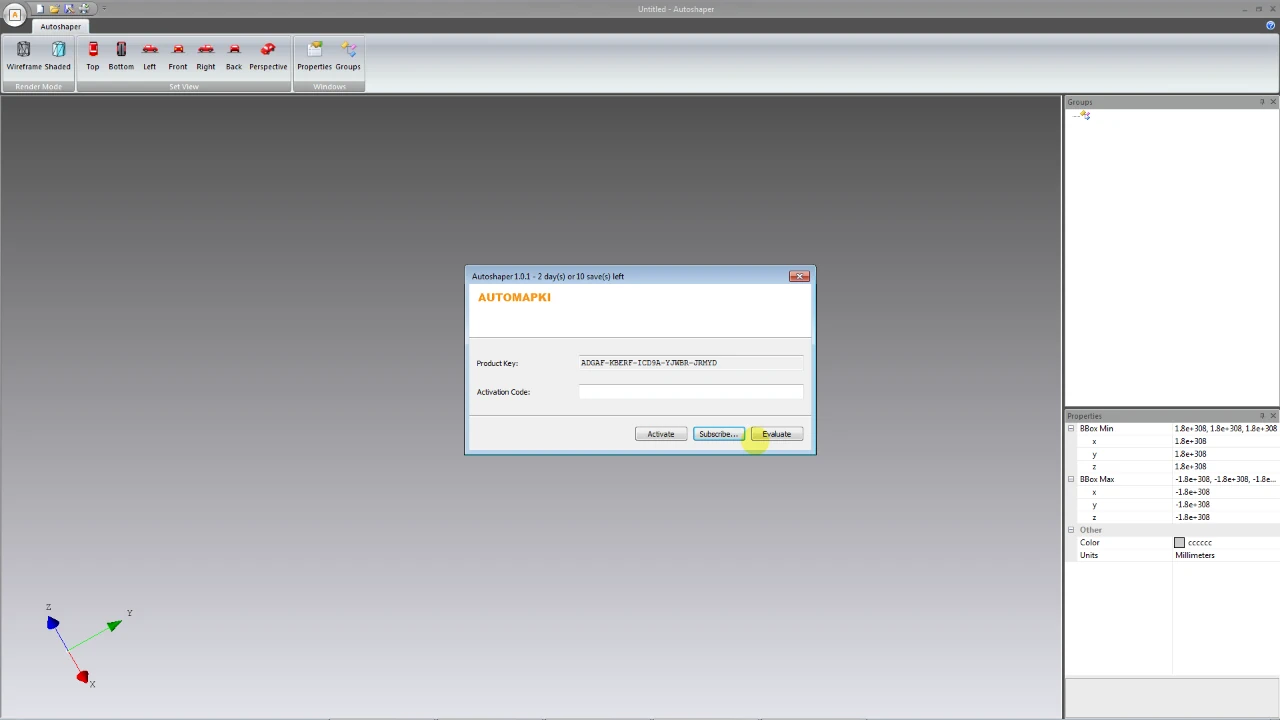
Download Autoshaper and install it on Windows. It runs as a standalone application - no Rhino license and no other CAD software is required on the conversion machine. Launch it from the Windows Start menu.
🚀 Open Your Rhino 3DM File
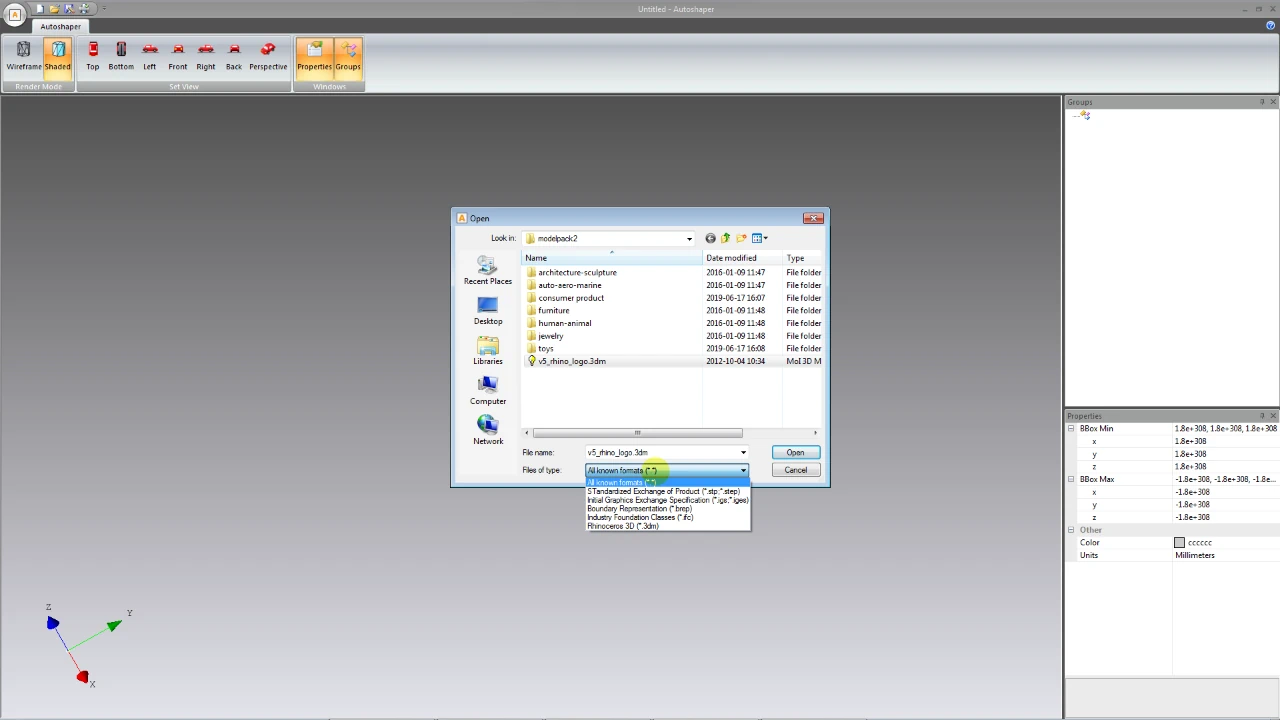
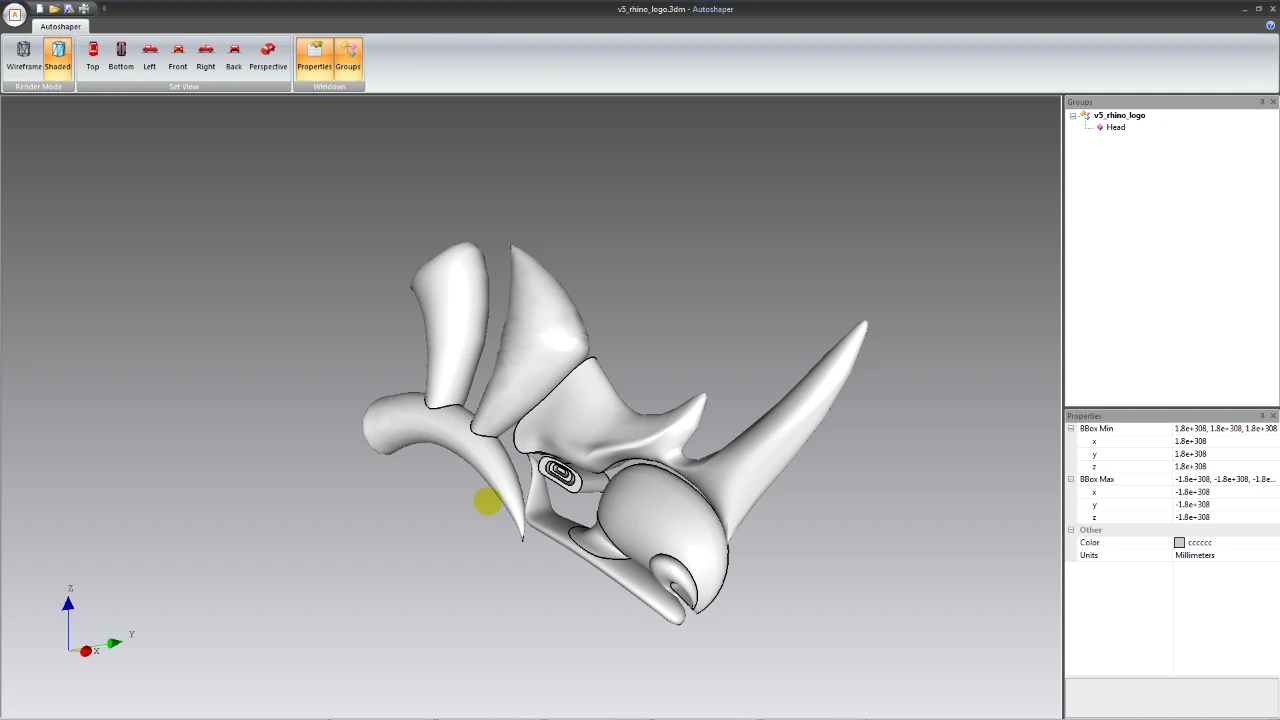
Click Open… and select your .3dm file, or drag and drop it into the Autoshaper window. The model loads into the 3D viewport with its NURBS surfaces, polygon meshes, and geometry intact. Autoshaper supports all Rhino versions from 2.x through 8.x.
📂 Review and Clean the Model (Optional)
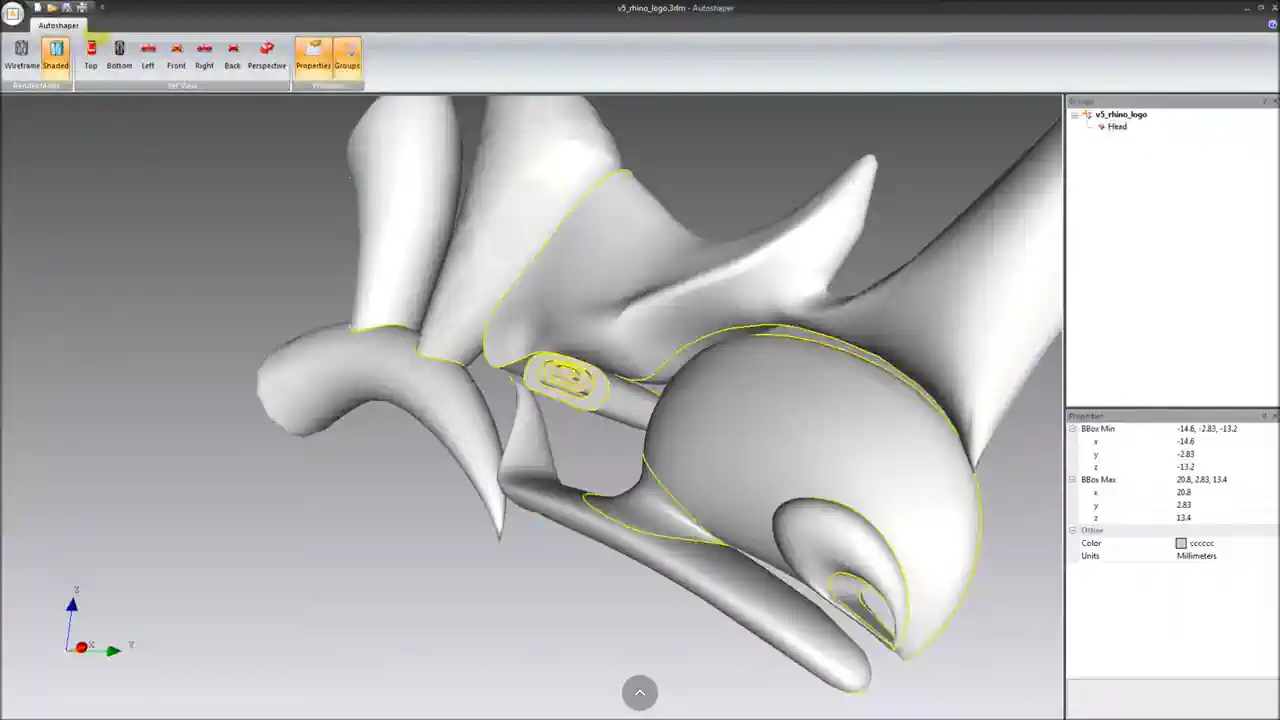
Before exporting, inspect the model in the viewport for any geometry issues. Autoshaper includes editing tools to repair or adjust the model if needed. Common issues to check include open polysurfaces (surfaces with gaps between them) and misaligned surfaces at component boundaries - both can cause STEP import issues in SolidWorks or CATIA.
For complex assemblies, consider checking that all surfaces are correctly joined and oriented before export - this ensures the STEP output imports as solid bodies rather than individual surface sheets.
🔧 Export to STEP Format
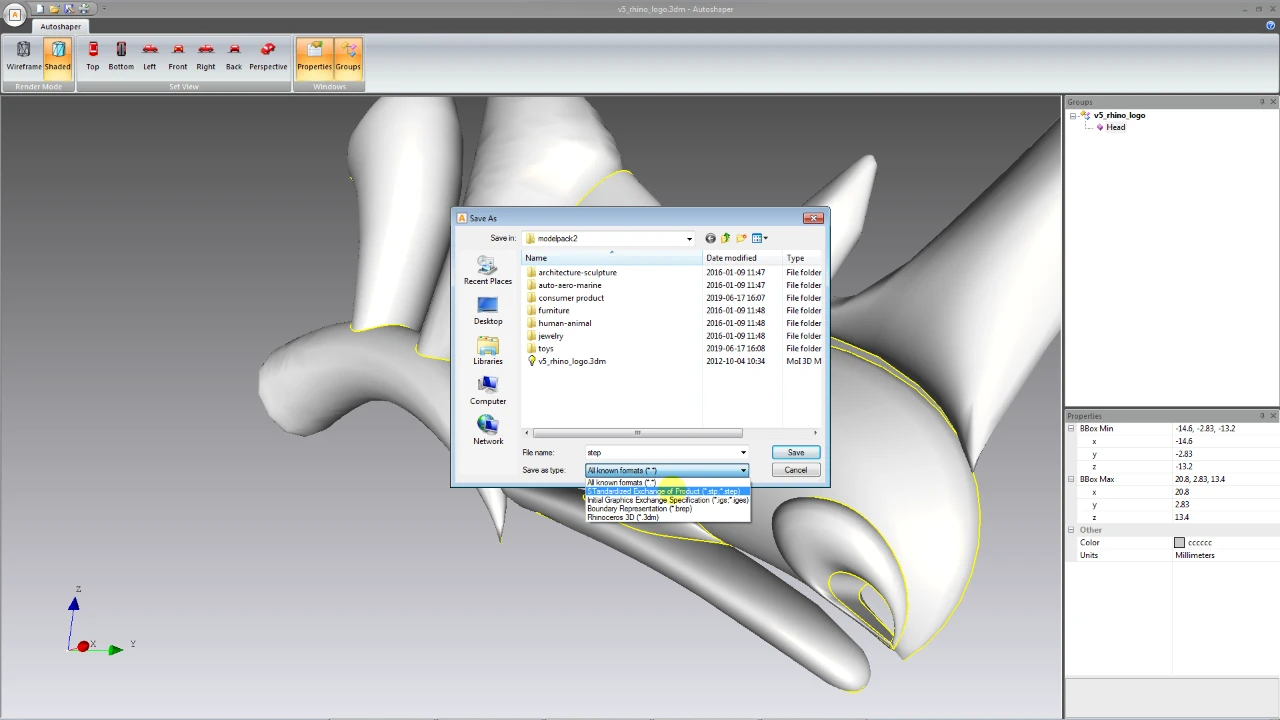
Click Save As… and select STEP (*.step or *.stp) from the file type dropdown. Both extensions are identical in content - use .stp if your target CAD application specifies that extension. Choose your output filename and destination, then click Save.
Autoshaper exports the NURBS geometry as ISO 10303 STEP entities, producing a file that SolidWorks, CATIA, Creo, NX, Inventor, and Fusion 360 can import as solid or surface bodies with full geometric accuracy.
💾 Import into Your Engineering CAD Tool
Open the STEP file in your target CAD application. The model should import as solid body or surface geometry. If it imports as individual surfaces rather than a joined solid, the original 3DM model had open polysurface boundaries - check the source 3DM model in Autoshaper or Rhino and ensure all surfaces are properly joined before re-exporting.
Frequently Asked Questions
-
Can I convert 3DM to STEP without Rhino installed?
Yes. Autoshaper reads 3DM files natively - no Rhino license or installation is required on the conversion machine.
-
Will NURBS geometry be preserved as true NURBS in the STEP output?
Yes. Autoshaper exports NURBS surfaces as ISO 10303 NURBS entities in the STEP file, not as triangulated approximations. This is the key advantage over mesh-based converters for engineering-grade STEP output.
-
Why does my STEP file import as individual surfaces instead of a solid in SolidWorks?
This happens when the source 3DM model contains open polysurfaces - surfaces with gaps or missing faces that prevent a closed solid body from forming. Inspect the 3DM model in Autoshaper or Rhino, join all surfaces that should form closed volumes, then re-export to STEP.
-
What STEP version does Autoshaper export?
Autoshaper exports ISO 10303 STEP files compliant with the AP214 standard, which is compatible with all major CAD applications including SolidWorks, CATIA, Creo, NX, Inventor, and Fusion 360.
-
Is there a free trial?
Yes. Autoshaper is available as a free evaluation download with a limited number of conversions so you can test the full workflow before purchasing.
Summary
Converting Rhino 3DM to STEP with NURBS precision requires Autoshaper - it exports true NURBS entities in the STEP output rather than triangulated approximations, producing files that SolidWorks, CATIA, Fusion 360, and Inventor import as high-quality solid or surface bodies. No Rhino installation needed, all Rhino versions supported.
👉 Ready to convert? Download Autoshaper and try it free.