Rhino opens STEP files natively - but when it does, it brings the geometry in as a mesh or faceted solid, not as editable NURBS surfaces. If you need the geometry to arrive in Rhino as proper NURBS polysurfaces that can be split, extended, trimmed, and rebuilt with Rhino's surface modeling tools, you need a converter that reconstructs NURBS from the STEP data rather than just tessellating it.
Autoshaper converts STEP files to 3DM format with NURBS surface preservation, producing Rhino files where curved surfaces open as smooth, editable NURBS polysurfaces rather than faceted mesh approximations. This guide shows how in five steps, with no Rhino installation required on the conversion machine.
How to Convert STEP to 3DM with NURBS: Step-by-Step
📥 Download and Install Autoshaper
Download Autoshaper and install it on Windows. It processes STEP files using a NURBS-preserving conversion pipeline - no Rhino license or installation is needed on the conversion machine. Launch it from the Windows Start menu.
📂 Open Your STEP File
Click Open… and select your .step or .stp file. The model loads into the 3D viewport. Both AP203 and AP214 STEP versions are supported, covering files from SolidWorks, CATIA, Creo, NX, Inventor, FreeCAD, and all other major CAD systems.
Inspect the geometry in the viewport - verify all parts are present and the geometry looks complete before converting. For complex STEP assemblies, individual components are maintained as separate objects in the output 3DM.
🚀 Review and Clean Geometry (Optional)
For best results in Rhino, check the STEP model for open polysurfaces - surfaces with gaps between adjacent faces that should form closed volumes. Autoshaper's geometry tools can help identify and close these gaps before export. Closed polysurfaces from the STEP file will import into Rhino as closed polysurfaces, which Rhino treats as solid-like objects for shelling, offsetting, and mass property calculations.
💾 Export to Rhino 3DM Format
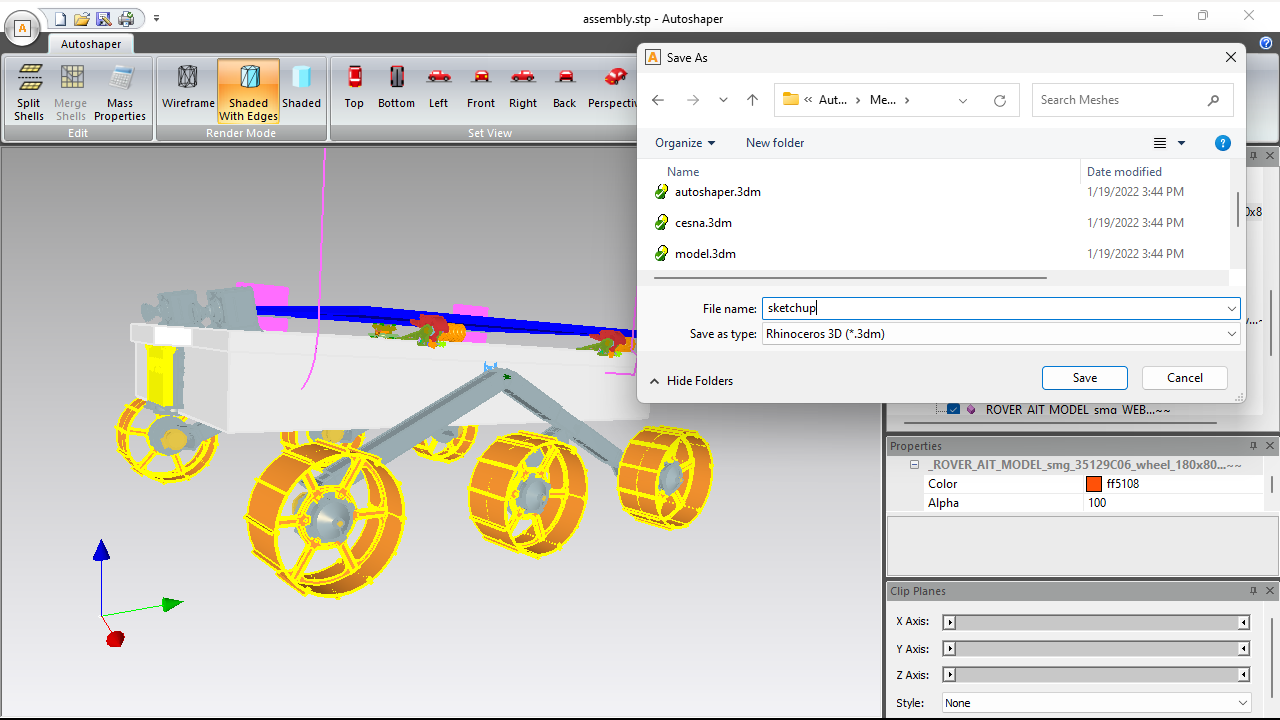
Click Save As… and select Rhinoceros 3D (*.3dm) from the file type dropdown. Choose your output filename and destination folder, then click Save. Autoshaper exports the NURBS surfaces as ISO 3DM entities - the native Rhino surface representation.
All supported Rhino output versions (Rhino 2.x through 8.x) are available in the save options. Select the version that matches the Rhino installation where the file will be opened.
🧊 Open and Edit in Rhinoceros 3D
Open the 3DM file in Rhino. The STEP geometry arrives as NURBS polysurfaces - select any surface and run Rhino's CurvatureAnalysis or ZebraAnalysis commands to verify smooth, continuous curvature. The surfaces are now fully editable with Rhino's standard surface tools: EdgeSrf, BlendSrf, OffsetSrf, Trim, Extend, and all other NURBS modeling operations.
Frequently Asked Questions
-
Will the converted 3DM file open as NURBS surfaces in Rhino, not as mesh?
Yes. Autoshaper exports NURBS surfaces as true NURBS entities in the 3DM file. When you open the file in Rhino and select an object, the Properties panel shows it as a Polysurface (NURBS), not a Mesh object.
-
Can I open the converted 3DM in any Rhino version?
Yes. Choose the target Rhino version in the Save As options - Autoshaper supports Rhino 2.x through 8.x. Open 3DM files in any Rhino version equal to or newer than the target version you selected.
-
Does Autoshaper require Rhino to be installed?
No. Autoshaper converts STEP to 3DM as a standalone Windows application. Rhino is not needed on the conversion machine.
-
Is there a free trial?
Yes. Autoshaper is available as a free evaluation download with a limited number of conversions to test the full workflow before purchasing.
Summary
Converting STEP to 3DM with NURBS preservation means the geometry arrives in Rhino as editable polysurfaces, not tessellated mesh - enabling curvature-continuous surface editing, offsetting, and rebuilding. Autoshaper handles the conversion in five steps with no Rhino installation needed. For workflows where mesh output is sufficient, the free 3DM mesh converter guide covers that path.
👉 Ready to convert? Download Autoshaper and try it free.