SketchUp doesn't export to IGES natively. If you need to move a SketchUp model into SolidWorks, CATIA, Siemens NX, Autodesk Inventor, or another engineering CAD system that requires IGES format, you need a standalone converter that handles the geometry translation.
This guide shows how to convert SKP to IGES in four steps using Autoconverter, including the geometry repair step that determines whether the output IGES contains clean, importable surfaces.
What Is IGES and Why Export SKP to It?
IGES (Initial Graphics Exchange Specification) is one of the oldest and most widely supported CAD interchange formats. Unlike mesh formats such as STL or OBJ, IGES stores geometry as mathematical surface and curve entities - making it suitable for exchange between high-end CAD systems like SolidWorks, CATIA, NX, and Pro/ENGINEER that require surface or solid geometry rather than triangle meshes.
SketchUp stores all geometry as polygon mesh - flat faces connected at edges. When converting SKP to IGES, Autoconverter represents these mesh faces as IGES surface entities, producing a file that CAD applications can import as surface geometry. This is particularly useful when a SketchUp architectural or product model needs to be brought into an engineering CAD system for detail design, simulation, or manufacturing.
How to Convert SKP to IGES: Step-by-Step
📥 Download and Install Autoconverter
Download Autoconverter and install it on Windows. It reads SKP files natively - no SketchUp installation required. Launch it from the Windows Start menu after installation.
📂 Open Your SketchUp SKP File
Click Open… and select your .skp file, or drag and drop it into the application window. The model loads into the 3D viewport. Autoconverter supports all SketchUp versions from SketchUp 3 through the latest release.
Inspect the model in the viewport before converting. SketchUp models frequently contain reversed faces (inside-out surfaces), small gaps between components, and floating geometry - all of which cause problems in the IGES output if not addressed first.
📤 Repair Geometry Before Export
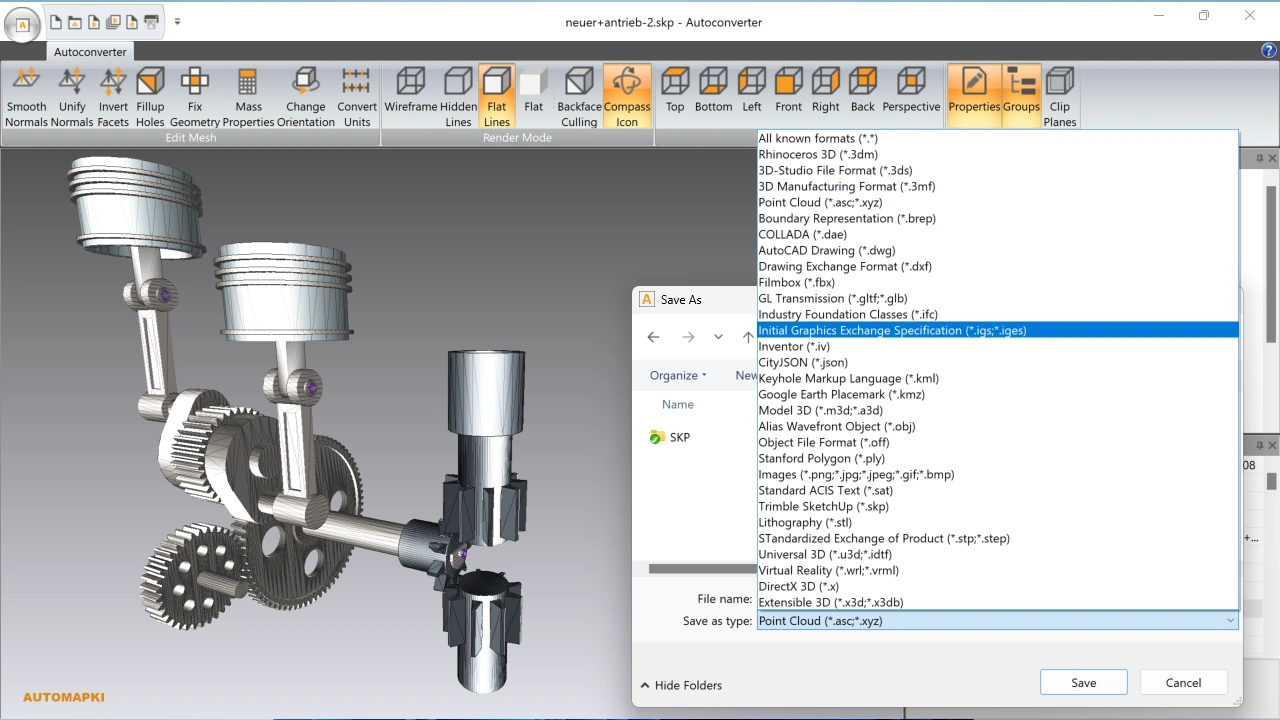
This step significantly affects the quality of the IGES output. SketchUp's polygon mesh geometry needs to be clean and closed for IGES surfaces to import correctly in SolidWorks, CATIA, or NX:
- Fix Geometry - repairs non-manifold edges, reversed face normals, and degenerate faces that cause import errors in CAD applications
- Fill Holes - closes open boundaries in the mesh, which is necessary for surfaces that need to form closed volumes in the IGES output
For models downloaded from the SketchUp 3D Warehouse or assembled from multiple components, mesh repair is almost always needed before a clean IGES export is possible.
🔧 Export to IGES Format
Click Save As… and select IGES (*.igs or *.iges) from the file type dropdown. Both extensions produce identical files - use .igs if your CAD application specifies that extension. Choose your output filename and destination folder, then click Save.
Autoconverter converts the SKP mesh geometry to IGES surface entities and saves the file. Import the result into your target CAD application to verify it opens correctly.
What Is IGES and Why Export SKP to It?
Both IGES and STEP are CAD interchange formats that export SketchUp mesh geometry as surface entities. The choice depends on your target application and workflow:
- IGES (.igs/.iges) - use when your target CAD system specifically requests IGES, or for compatibility with legacy engineering systems. IGES has been the engineering interchange standard since the 1980s and is supported by virtually every CAD system ever produced.
- STEP (.stp/.step) - the modern ISO standard replacement for IGES. Better at preserving assembly structure, colors, and attributes. Preferred for SolidWorks, CATIA, Creo, and NX when either format is accepted.
If your engineering partner or client doesn't specifically require IGES, STEP is generally the better choice for SKP-to-engineering-CAD conversions. Autoconverter supports both formats from the same SKP source file.
Frequently Asked Questions
-
Does SketchUp export to IGES natively?
Standard SketchUp does not include IGES export. SketchUp Pro's built-in export options cover DWG, DXF, OBJ, DAE, FBX, and 3DS - but not IGES or STEP. Autoconverter adds IGES export (and STEP, SAT, and other engineering formats) as a standalone Windows application without requiring SketchUp to be installed.
-
Can I import the IGES file back into SketchUp?
Yes. Autoconverter also converts in reverse - open the IGES file and export it as SKP to bring the geometry back into SketchUp. Note that complex trimmed NURBS surfaces in an IGES file may be approximated as polygon mesh when converted to SKP, since SketchUp only supports polygon mesh geometry.
-
Why does my IGES file fail to import in SolidWorks or CATIA?
The most common cause is mesh errors in the source SKP file - reversed faces, open boundaries, or non-manifold edges that cause invalid IGES surface entities. Run the Fix Geometry and Fill Holes tools in Step 3 on the source SKP before re-exporting to IGES.
-
Is IGES or STEP better for converting SketchUp models to engineering CAD?
STEP is generally preferred for modern engineering workflows - it handles assembly structure and attributes more reliably than IGES. Use IGES when a specific system requires it or for compatibility with legacy CAD tools. Autoconverter supports both from the same SKP file.
-
Is there a free trial?
Yes. The free evaluation version of Autoconverter supports up to 10 file conversions. The full licensed version provides unlimited conversions and batch processing.
Summary
Exporting SketchUp SKP files to IGES requires geometry repair before conversion - clean, manifold mesh geometry is what determines whether the IGES output imports correctly in SolidWorks, CATIA, or NX. Autoconverter handles the full pipeline in four steps: open SKP, repair geometry, export IGES. For modern engineering workflows where either format is accepted, STEP is preferred over IGES - both are available from the same tool.
👉 Ready to convert? Download Autoconverter and try it free for up to 10 conversions.