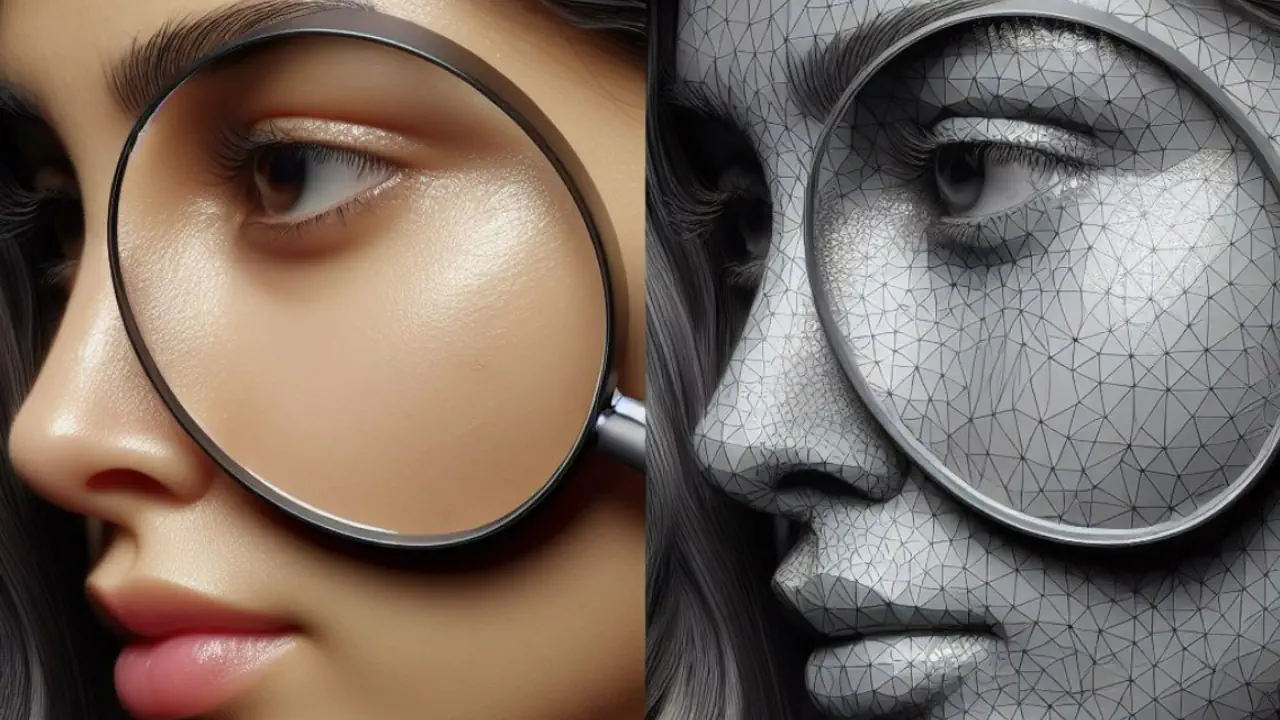
When you convert a 3D mesh between formats, the output often looks faceted - every polygon face renders as a distinct flat surface with visible hard edges between adjacent faces. This happens because the mesh either has no vertex normals stored, or the normals are flat (each vertex normal points in the same direction as its face normal). The geometry is technically correct, but the visual result looks angular and low-quality even on smooth, curved surfaces.
Autoconverter applies vertex normal smoothing during format conversion - averaging face normals at shared vertices, controlled by a maximum angle threshold. The result is smooth shading across curved surfaces while preserving hard edges at genuine geometry corners. This is especially useful when converting to SketchUp SKP, where SketchUp's own smooth edge system relies on correctly oriented vertex normals.
How Vertex Normal Smoothing Works
Every polygon mesh face has a face normal - a vector perpendicular to the face surface. At each mesh vertex where multiple faces meet, the vertex normal determines how the renderer interpolates shading across the face boundary. Two cases:
- Flat shading (no smoothing) - each vertex uses the face normal of its own face. Adjacent faces render as completely separate flat surfaces - a cylinder looks like a prism with visible facets along every edge.
- Smooth shading (averaged normals) - each vertex uses a weighted average of the normals of all faces sharing that vertex. Shading interpolates continuously across face boundaries - the cylinder appears cylindrical even though the geometry is still faceted triangles.
The key control is the maximum smoothing angle: the threshold angle between adjacent face normals below which the normals are averaged together. Faces with a larger angle between their normals are treated as a hard edge - normals are not averaged, preserving the sharp geometric crease.
Setting the angle to 0° produces flat shading (no smoothing). Setting it to 180° smooths everything including intentional sharp corners. The practical sweet spot for most organic and architectural models is 30°–60°: smooth enough to eliminate visible faceting on cylindrical and curved surfaces while keeping right-angle corners sharp.
Why This Matters for SKP Export
SketchUp renders mesh edges as either smooth (hidden and interpolated) or hard (visible and flat-shaded). When Autoconverter exports to SKP with normal smoothing applied, the smoothed vertex normals are written as SketchUp's soft/smooth edge data - edges with normals that were averaged together become smooth edges in SketchUp; edges where normals were not averaged become hard edges. The resulting SKP file displays correctly without requiring manual edge softening in SketchUp after import.
Without normal smoothing, every edge in an imported SKP mesh is hard - a STEP-derived product model or an OBJ character mesh looks fully faceted with visible edges on every polygon boundary, requiring manual edge selection and softening in SketchUp to fix.
Supported Formats
Vertex normal smoothing applies when importing from formats that may lack smooth normals, and is preserved in all output formats that support per-vertex normals:
- Reads smooth normals from: FBX, OBJ, DAE, 3DM, X3D, U3D, 3DS, GLTF/GLB, USD
- Computes and writes smooth normals to: SKP, FBX, OBJ, DAE, GLTF/GLB, USD, 3DM, X3D, and other formats supporting per-vertex normal data
- Not applicable: STL (geometry only, no normals stored), 3MF (geometry and color only), DWG/DXF polyface mesh (no per-vertex normals)
Smoothing Angle Guide by Model Type
| Model Type | Recommended Angle | Effect |
|---|---|---|
| Mechanical parts (hard-edge CAD) | 0°–15° | Preserves all machined edges; minimal smoothing on fillets only |
| Architecture (mix of flat and curved) | 30°–45° | Smooth curved surfaces (columns, arches); sharp corners on walls and sills |
| Product design (consumer goods) | 45°–60° | Smooth product surfaces with defined edge highlights |
| Organic characters and props | 60°–90° | Maximum smoothness on organic forms; large angle transitions |
| Terrain and landscape meshes | 90°–120° | Smooth rolling terrain without visible triangulation |
Common Use Cases
- OBJ to SKP - OBJ product models from online 3D libraries often have no smooth normals; applying smoothing at 45°–60° during SKP export produces a clean SketchUp model without manual edge softening
- STEP / IGES to SKP or FBX - CAD solids tessellated to polygon mesh have flat normals by default; normal smoothing restores the smooth cylindrical and fillet appearance of the original CAD geometry
- DAE to FBX - Collada files from SketchUp, Blender, or ArchiCAD may lose smooth edge data in the conversion; reapplying smoothing at the correct angle for the model type restores correct rendering
- FBX to GLTF for web - apply smoothing before exporting to GLTF to ensure web 3D viewer rendering matches the intended appearance of the model
Frequently Asked Questions
Why does my converted model look faceted even though the source looked smooth?
The source format stored smooth normals that were lost or not read during conversion. Enable vertex normal smoothing in Autoconverter with an angle threshold appropriate for your model type. For most architectural or product models, 45° is a practical starting point - increase if surfaces still look faceted, decrease if sharp corners are being incorrectly smoothed.
Does normal smoothing change the mesh geometry?
No. Normal smoothing only computes and stores the normal vector data per vertex - it does not move, add, or remove any vertices or faces. The mesh geometry is identical before and after smoothing; only the shading behavior changes.
What is the default smoothing angle in Autoconverter?
The default angle is 30°, which provides conservative smoothing - effective for most architectural and product models without over-smoothing sharp geometric features. Adjust it in the conversion settings for specific model types.
Is there a free trial?
Yes. The free evaluation version of Autoconverter supports up to 10 file conversions including normal smoothing. The full licensed version provides unlimited conversions and batch processing.
Summary
Autoconverter applies vertex normal smoothing during 3D format conversion using a configurable maximum angle threshold - averaging normals at shared vertices where adjacent face normals differ by less than the threshold, preserving hard edges where they differ by more. This removes faceted shading artifacts from polygon meshes converted from STEP, OBJ, DAE, and other sources, and writes smooth edge data into SKP, FBX, GLTF, and USD output. The smoothing angle should be tuned to the model type: low angles for mechanical/CAD, moderate for architecture and product design, higher for organic forms.
👉 Ready to convert? Download Autoconverter and try it free for up to 10 conversions.