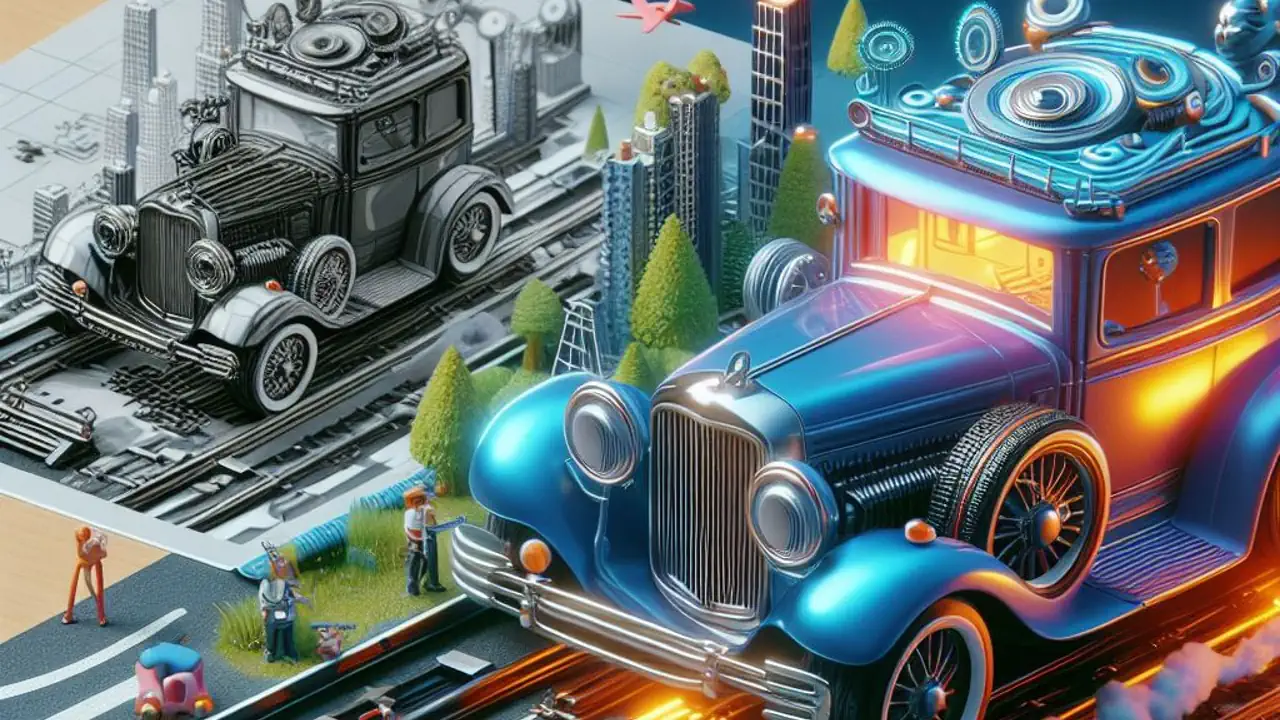
A 3D relief is a mesh model where the height (Z axis) of each point corresponds to pixel brightness or estimated depth from a 2D image - brighter pixels become higher geometry, darker pixels lower. This converts a flat image into a physical or printable 3D surface that captures the visual content of the original picture as embossed geometry.
Autoconverter converts PNG, JPEG, BMP, and GIF images to 3D relief mesh models using two different techniques depending on the image type - AI-based depth estimation for color photos and edge detection for black-and-white images. The output mesh can be exported to STL for 3D printing or to OBJ, SKP, DAE, and other formats for further editing.
How 2D to 3D Image Conversion Works
The conversion technique depends on the input image type:
| 🖼️ Image Type | ⚙️ Conversion Method | 📦 3D Output | ⭐ Best For |
|---|---|---|---|
| Color photos (JPEG, PNG) | AI depth estimation - analyzes the image and infers depth from visual cues (shading, perspective, context) | Organic 3D relief mesh with continuous depth variation | Portraits, landscapes, product photos, scenic images |
| Black and white images (PNG, BMP) | Edge detection via OpenCV - traces shape boundaries and outlines to produce triangulated 3D geometry | Sharp-edged 3D forms following the image's outlines and shapes | Logos, text, line art, technical drawings, silhouettes |
Supported Input Image Formats
Autoconverter reads the following image formats for 2D to 3D conversion:
- PNG - lossless format; recommended for logos, line art, and images with transparency
- JPEG - standard photo format; best for color photos and photographic reliefs
- BMP - uncompressed bitmap; suitable for high-quality black-and-white reliefs
- GIF - simple graphics and animations (first frame used for conversion)
Supported 3D Output Formats
The 3D relief mesh can be exported to any format Autoconverter supports:
- STL - for direct 3D printing with any slicer (Cura, PrusaSlicer, Bambu Studio)
- OBJ - for editing in Blender, Maya, or other 3D modeling tools
- SKP - for use in SketchUp
- DAE - for Collada-compatible applications
- 3MF - for modern 3D printing workflows with color support
- GLTF/GLB - for web 3D viewers and AR applications
Common Use Cases
Photo to 3D Relief for Printing
Convert a portrait photo or landscape photograph to a 3D relief mesh and print it in PLA or resin for a personalized decorative piece, gift, or keepsake. The AI depth estimation maps facial features, shadows, and depth cues in the photo to varying mesh heights, producing a physically tangible version of the image.
Logo to 3D Printable Model
Convert a PNG or BMP logo to a 3D extruded or relief model for printing as a badge, sign, trophy insert, or branded product component. Black-and-white logo images work best - the edge detection follows the logo's outline to produce clean, sharp-edged 3D geometry. For best results, use a high-contrast PNG with a white background and black artwork.
Text and Line Art to 3D
Convert text rendered as a PNG image, monogram designs, or technical line drawings to 3D relief geometry for CNC machining, laser engraving path generation (via STL or OBJ), or 3D printing of raised lettering and dimensional signage.
Maps and Diagrams to Tactile Models
Convert topographic maps, floor plan outlines, or educational diagrams to 3D mesh for tactile learning aids, physical models, or presentation prototypes.
Frequently Asked Questions
What is the difference between AI depth estimation and edge detection?
AI depth estimation analyzes a color photo and infers the spatial depth of different areas based on visual cues - it produces an organic, continuous relief with varying depths representing near and far elements in the photo. Edge detection analyzes contrast boundaries in a black-and-white image and traces shape outlines to produce sharp, extruded 3D geometry - better for logos, text, and line art where defined edges matter more than depth variation.
Can I control the relief height or depth?
Yes. The conversion parameters include settings for relief depth (maximum height of the tallest points in the mesh) and base thickness (flat bottom layer added below the relief for structural stability when printing). Adjust these before export to control the final dimensions of the relief model.
What image format gives the best logo conversion?
PNG with a white background and solid black artwork. High-contrast, clean line art without gradients or anti-aliasing produces the sharpest 3D geometry edges. Avoid JPEG for logos - JPEG compression introduces noise around edges that degrades edge detection quality.
Is there a free trial?
Yes. The free evaluation version of Autoconverter supports up to 10 file conversions, including image-to-3D relief conversions. The full licensed version provides unlimited conversions.
Summary
Autoconverter converts PNG, JPEG, BMP, and GIF images to 3D relief mesh models using AI depth estimation for color photos and OpenCV edge detection for black-and-white images. Output formats include STL for 3D printing, OBJ for editing, and GLTF/GLB for web 3D. For best logo and line art results, use a clean high-contrast black-and-white PNG. For photo reliefs, use a well-lit, high-resolution color image.
👉 Ready to convert? Download Autoconverter and try it free for up to 10 conversions.